
Subscribe
Accounting & FinanceTested · Sep 12, 2026Copilot in Excel side pane

Copilot Side Pane vs =COPILOT() Function: What You Can and Can’t Replace

by Waheed Burna | Sep 14, 2026 | Accounting & Finance, Reporting & Analytics

Microsoft points =COPILOT() users to the Copilot side pane. It replaces some workflows completely and others not at all. A direct comparison of what each one does, and what to use for the gaps.

i
TL;DR Summary

The =COPILOT() function lived in cells; the Copilot side pane lives in a conversation, and every other difference follows from that. The side pane is better for summarising datasets, exploratory questions, and drafting single pieces of text, and it can see your whole workbook. It cannot populate a column row by row, which means per-row classification, normalisation, and extraction workflows need a third-party add-in, Office Scripts, or Power Query instead.

!
The Bottom Line

Ask one question of your workflow: do you need one answer, or one answer per row? One answer, the side pane is a genuine upgrade. One answer per row, it is not a replacement at all and Microsoft's guidance quietly glosses over that. Neither tool is deterministic, so keep both away from arithmetic and from anything entering a financial record unreviewed.

Microsoft’s answer to the retirement of =COPILOT() is the Copilot side pane. The official line is that it “provides many of the same AI-powered capabilities, including summarizing text, classifying data, generating content, and retrieving information from the web.”

That is true, and it is also incomplete in a way that matters. This post is a direct comparison of what each one actually does, so you can work out which of your workflows survive the transition and which need a different answer entirely.

The One Difference That Explains Everything Else

=COPILOT() lived in cells. The side pane lives in a conversation.

Every other difference follows from that. A formula in a cell can be dragged down two hundred rows, producing two hundred independent results that sort, filter, and feed other formulas. A conversation produces an answer you read, and then copy somewhere if you want to keep it.

For some tasks that distinction is irrelevant. For others it is the entire job.
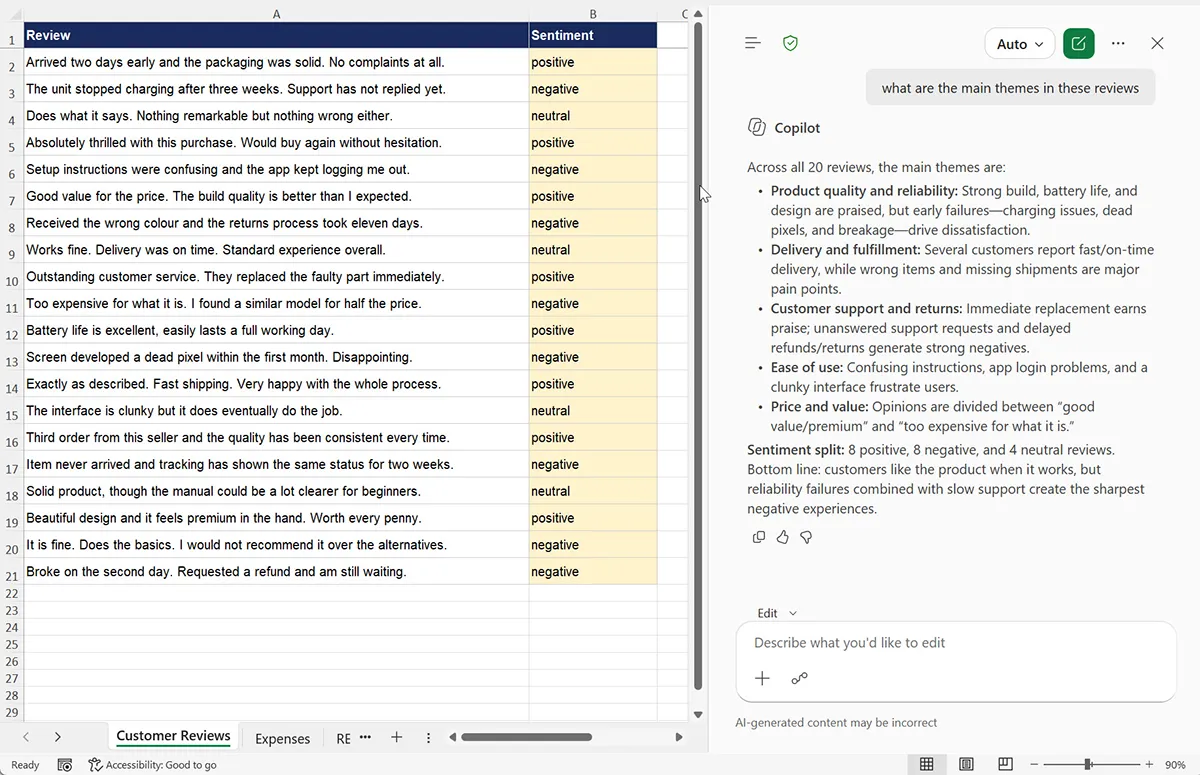
Excel showing a column populated row by row with =COPILOT() formula results alongside the Copilot side pane returning a single conversational answer
The same task, both ways. The function produced one filterable value per row. The side pane produces one answer you read and copy. For summarising that is an upgrade; for tagging 200 rows it is not a replacement.

Copilot Side Pane vs =COPILOT(): Side by Side

Capability =COPILOT() function Copilot side pane
Populates cells row by row Yes — drag down like any formula No — returns a conversational answer
Output is filterable and sortable Yes, once in cells Only after manual copying
Sees the whole workbook for context No — only what you pass it Yes
Summarises a dataset Poorly — one cell at a time Yes, this is its strength
Answers follow-up questions No Yes
Rate limited Roughly 100 calculations per 10 minutes Standard Copilot limits, far less restrictive per task
Works in Confidential labelled workbooks No Depends on tenant policy
Deterministic output No — same input could vary on recalculation No
Availability Retired September 14, 2026 Generally available

Workflows That Transfer Cleanly

These were arguably always better suited to the side pane, and moving them is an improvement rather than a compromise.

Summarising a dataset

Asking “what are the main themes in these three hundred reviews” was awkward with the function — you would summarise each row individually and then have to summarise the summaries. The side pane reads the range and answers directly, and you can ask follow-ups.

Exploratory analysis

“Which product has the most complaints” or “what changed between Q1 and Q2” are questions, not columns. The side pane’s access to the whole workbook makes it materially better at these than the function ever was.

Drafting a single piece of text

Writing one customer response or one summary paragraph does not need a formula. The side pane handles it and lets you iterate on the wording conversationally.

Workflows That Do Not Transfer

This is where being honest matters more than being reassuring.

Per-row classification at scale

Tagging two hundred support tickets with a priority. Categorising eight hundred expense lines. Assigning a sentiment to every review in a column. The function did this in one drag. The side pane will discuss your data intelligently and will not write those two hundred values into cells.

You can ask it to analyse the column and it will give you a useful answer about the column. What you cannot get is a filterable value sitting next to each row.

Normalisation of messy values

Standardising vendor names where “MICROSOFT CORP”, “microsoft”, and “Microsoft Corporation Inc” all need to become “Microsoft”. This was the function’s strongest use case precisely because a lookup table cannot anticipate variations it has never seen. It is the loss that will be felt most by anyone doing data cleanup.

Extraction into structured columns

Pulling a dollar amount, a date, or an email address out of a free-text field and into its own column, across a whole sheet. Again: the side pane can tell you about the field. It cannot build the column.

What to Use Instead for the Ones That Do Not Transfer

Ranked by how well they actually match the pattern you are replacing:

  1. A third-party AI add-in that provides worksheet functions. The closest structural match — you get a formula that lives in a cell and drags down. The cost is a new vendor in your data path, which for anything touching client or financial data means a real review rather than a quick install.
  2. Office Scripts calling an external API. Full control, writes results back into cells, and schedulable through Power Automate. Requires someone comfortable in TypeScript, which for most small firms is the blocker.
  3. Power Query. Not an AI tool, and that is often the point. A surprising share of what people used =COPILOT() for was actually rules-based work that a deterministic transformation handles better and more reliably.
  4. Accept the manual step. For a monthly task on fifty rows, the side pane plus copy-paste may genuinely be cheaper than building anything. Not every workflow deserves automation.

An Honest Word About Determinism

One thing worth keeping in perspective as you rebuild: neither tool is deterministic, and neither should be trusted with anything that must be exactly right.

The function could return different output for identical input on recalculation. The side pane has the same property. Whatever you replace this with, if it involves a language model, the same rule applies — use it for a first pass on tasks where you can sample the output and catch errors, and never for arithmetic or for anything that goes into a financial record without review.

That was true of =COPILOT() when it existed, and we said so in our original review. It remains true of whatever comes next.

If You Are Still on the Function

You have until September 14. Convert anything you need to keep into static values first — our step-by-step conversion guide covers the process — and read the retirement guide for what Microsoft has and has not confirmed.

Frequently asked questions

No. It replaces some workflows completely and others not at all. The side pane is better for summarising a dataset, exploratory questions, and drafting a single piece of text. It cannot populate a column row by row, which is what the function was uniquely good at. The dividing line is whether you need one answer or one answer per row.

It can analyse the column and tell you about it, but it will not write an independent value into each cell. If you need a filterable classification sitting next to every row, you need a worksheet-level function, which means a third-party add-in, Office Scripts calling an API, or Power Query if the task is really rules-based.

Yes, and this is a genuine advantage over the function. =COPILOT() only ever saw the text you passed into it, which is why it could not answer questions that required workbook-wide context. The side pane can, which makes it materially better for exploratory analysis.

A third-party AI add-in that exposes worksheet functions is the closest structural match, because you get a formula that lives in a cell and drags down like the original. The trade-off is introducing a new vendor into your data path, which for client or financial data warrants a proper review rather than a quick install.

Not in the same restrictive way. The function was capped at roughly 100 calculations every 10 minutes, which made batches of more than about 80 rows a scheduling exercise. The side pane operates under standard Copilot limits and per-task throttling is far less likely to interrupt normal use.

No. Both are non-deterministic and both can produce confident, plausible, wrong answers with no error to signal it. Whatever you move to, treat the output as a first pass on tasks where you can sample results and catch errors, and keep it away from arithmetic and from anything entering a financial record without human review.

Testing methodology

Last tested Sep 12, 2026
Versions tested Copilot in Excel side pane, generally available build, September 2026 Excel for Microsoft 365, Windows 11 and macOS =COPILOT() function behaviour from our testing between May and September 2026, Frontier and Insider builds

This comparison draws on hands-on use of both tools in Excel for Microsoft 365 on Windows 11 and macOS.

The =COPILOT() function behaviour reflects our testing between May and September 2026 on Frontier and Insider builds with a Microsoft 365 Copilot add-on licence, across the same sample datasets used in our earlier prompt and error testing — customer reviews, expense lines, vendor name variations, and multilingual messages.

The side pane behaviour reflects use of the generally available build in September 2026 on the same datasets, running comparable tasks so the comparison is like for like.

What we did not measure: output quality scored against ground-truth labels, since we do not have labelled data for these sets. The comparison is about structural capability — what each tool can and cannot do — rather than which produces better answers. Where we describe one as better for a task, that reflects fit to the workflow, not measured accuracy.

Rate limit figures for the function are from Microsoft documentation. Side pane limits vary by tenant and licence and were not systematically tested.

Common errors and what they mean

If you're hitting an error or unexpected behavior, here's what each one means and the fastest path to resolving it.

Error Why it happens How to fix it
Side pane will not write results into cellsIt is conversational by design and does not populate ranges. This is expected behaviour, not a fault.Use a worksheet-level alternative for per-row work, such as a third-party AI add-in, Office Scripts, or Power Query where the task is rules-based.
Side pane gives a different answer to the same questionLanguage model output is non-deterministic. The function behaved identically.Do not rely on repeatability. Capture the answer you intend to use and record it, rather than expecting to regenerate the same wording later.
Side pane refuses to work with a labelled workbookSensitivity labelling and tenant policy can restrict Copilot access to the content.Check the applied label with your Microsoft 365 administrator. The function had a stricter version of this restriction and blocked Confidential and Highly Confidential outright.
Copied side pane output loses formatting in cellsThe pane returns formatted conversational text rather than cell values.Paste using Match Destination Formatting, or paste into a text editor first to strip formatting before bringing it into Excel.
Answers reference data you did not intend to shareThe side pane has access to the whole workbook, unlike the function which only saw what you passed it.Remove or separate sensitive sheets before using the pane on a shared workbook, and confirm your tenant's Copilot data-handling settings.
FREE · 12 PAGES

30 Copilot Prompts for Accounting Firms

Sent straight to your inbox. No account, no upsell.

You’ll also get Lab Notes — one real AI workflow a week. One reply unsubscribes you.