
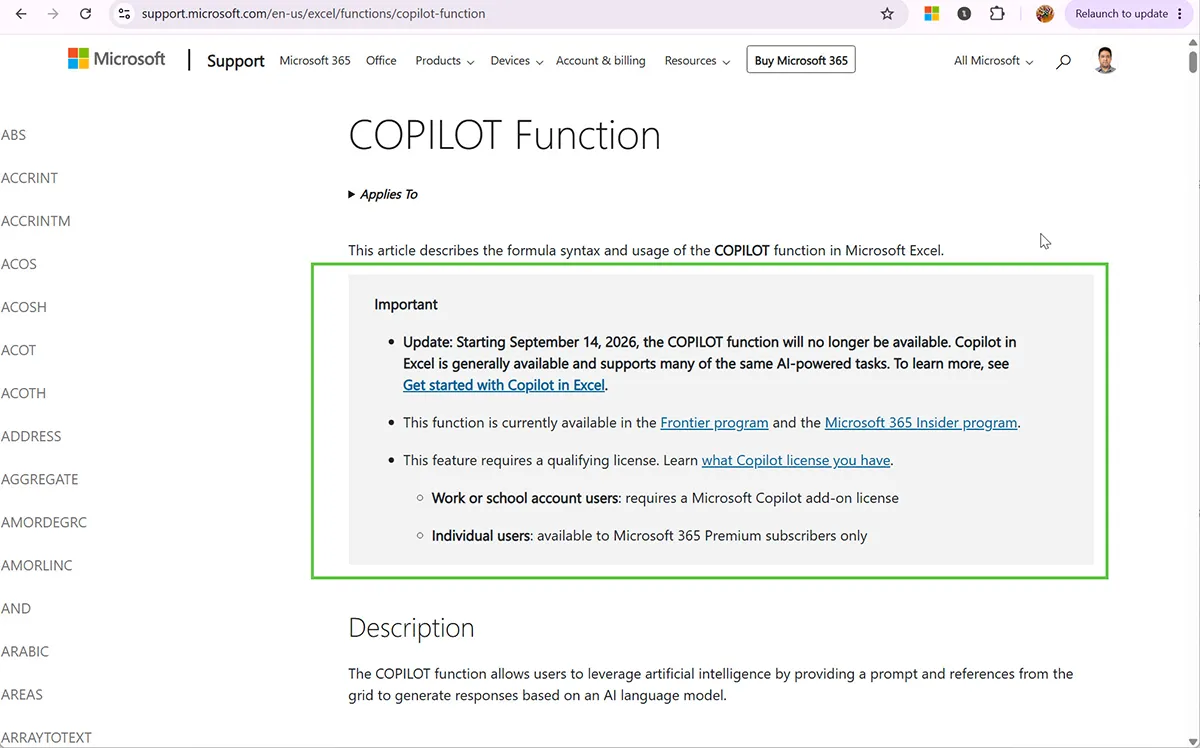
Microsoft is retiring the =COPILOT() function in Excel. The support documentation states it plainly: “Starting September 14, 2026, the COPILOT function will no longer be available.”
If you built anything on this function — expense categorisation, sentiment tagging, vendor cleanup, translation columns — you have a short window to protect the output. This guide covers what is confirmed, what Microsoft has pointedly not confirmed, and exactly what to do before the date.
What Is Confirmed
The retirement was announced through Microsoft 365 Message Center notice MC1454373. These points are documented:
- The function stops being available on September 14, 2026.
- Users “will no longer be able to create new formulas using the =COPILOT function” after that date.
- No admin action is required — this is not a setting you can extend or opt out of.
- Microsoft’s recommended replacement is the Copilot side pane in Excel, which is generally available.
- Microsoft’s stated reasoning: the change “helps streamline the Copilot experience within Excel while continuing to provide AI assistance through a supported interface.”
The Question Microsoft Has Not Answered
Here is the gap that matters most, and it is worth being direct about it: Microsoft has not said what happens to existing =COPILOT() formulas already sitting in workbooks.
The notice is carefully worded. It says users cannot create new formulas after September 14. It does not say whether formulas already in a workbook will keep returning results, freeze at their last value, or start throwing errors.
Three outcomes are possible, and we cannot tell you which one Microsoft has chosen because Microsoft has not published it:
- Formulas return an error. Most likely
#NAME?, the error Excel returns for an unrecognised function. This is what happens today on machines that never had the function. - Formulas keep their last cached value until something forces a recalculation, then error.
- Formulas continue working for existing workbooks indefinitely. This is the least likely of the three — retiring the backing service while leaving formulas live would be unusual.
Our position: assume the formulas break. The cost of assuming that and being wrong is ten minutes of copy-paste. The cost of assuming the opposite and being wrong is a workbook full of #NAME? errors where your categorised data used to be.
Who Is Actually Affected
Fewer people than the headlines suggest, and it is worth checking whether you are one of them before you spend time on this.
=COPILOT() never reached general availability. It was only ever in the Frontier program and the Microsoft 365 Insider program. On top of that it required either a Microsoft Copilot add-on licence (work or school accounts) or a Microsoft 365 Premium subscription (personal accounts).
If you are on a standard Microsoft 365 Business or Enterprise build and never joined an early-access programme, you almost certainly never had this function and nothing changes for you. If you are unsure whether you ever had it, our guide on why =COPILOT() isn’t showing in Excel walks through how to check.
What to Do Before September 14
Step 1 — Find every workbook using the function
Search your files for the string =COPILOT(. Cover the places workbooks actually live: local drives, OneDrive, SharePoint document libraries, Teams file tabs, and email attachments people never moved out of Outlook.
Do not rely on memory. The most commonly forgotten files are templates other people copy from, and one-off analyses that quietly became recurring reports.
Step 2 — Convert the results you need to keep
This is the step that actually protects you, and it takes minutes. Select the cells containing =COPILOT() output, copy, then Paste Special → Values over the top. The text stays; the formula that generated it disappears.
Do this for anything where the generated output matters more than the ability to regenerate it — which, for classification and cleanup work, is nearly always. We cover the process and its edge cases in how to save your =COPILOT() results before September 14.
Step 3 — Decide what replaces each workflow
Not every use case needs the same replacement. Sort your uses into three buckets:
- One-off classification you already ran. Nothing to replace. Convert to values and move on.
- Recurring enrichment on new data. This is the painful one. The side pane will not do it, because it does not populate cells row by row. Options are Power Query, Office Scripts, or a third-party add-in that provides worksheet-level AI functions.
- Ad-hoc analysis and summarisation. The Copilot side pane handles this well. It was arguably always the better tool for it.
Step 4 — Tell the people who use your templates
If you distributed a workbook with =COPILOT() in it, the people using it will hit the failure before they hear about the retirement. Get ahead of it with a one-line note and a corrected file.
What the Side Pane Can and Cannot Replace
Microsoft describes the side pane as providing “many of the same AI-powered capabilities, including summarizing text, classifying data, generating content, and retrieving information from the web.”
That is accurate as far as it goes, but it understates one difference that matters enormously in practice: the side pane does not live in cells. =COPILOT() could be dragged down 200 rows and produce 200 independent, filterable values. The side pane produces a conversation you read and copy from.
For “summarise this dataset,” the side pane is fine and arguably better. For “tag each of these 200 support tickets with a priority,” it is not a replacement at all. We compare the two directly in Copilot side pane vs =COPILOT().
Was This Function Worth Keeping?
An honest assessment, since we spent months testing it.
The function had real constraints that limited it from the start. Microsoft explicitly warned against using it for numerical calculation, for anything requiring workbook-wide context, and for anything with legal or compliance implications. It was capped at roughly 100 calculations per 10 minutes. It refused to run in workbooks labelled Confidential or Highly Confidential. It required an internet connection. And it was non-deterministic — the same input could return different output on recalculation.
Those are severe limits for a spreadsheet function. Excel’s core promise is that a formula returns the same answer every time, and =COPILOT() broke that promise by design.
But within its lane — classification, normalisation, extraction from messy text — it did something no other Excel function could. Standardising three hundred inconsistently-typed vendor names is a task where VLOOKUP requires a clean lookup table that does not exist, and =COPILOT() just handled the variations. That capability is genuinely lost, and the side pane does not bring it back.
For the fuller picture of what it did well and badly, see our review of the =COPILOT() function and the errors and diagnostics guide.