
Subscribe
Accounting & FinanceTested · Sep 12, 2026Excel for Microsoft 365

How to Save Your =COPILOT() Results Before September 14 (Step-by-Step)

by Waheed Burna | Sep 15, 2026 | Accounting & Finance, Reporting & Analytics

The =COPILOT() function retires on September 14, 2026, and Microsoft has not said whether existing formulas survive. Here is how to convert your results to permanent values, find every affected workbook, and decide what replaces recurring workflows.

i
TL;DR Summary

Select your =COPILOT() cells, copy, then Paste Special and choose Values. That converts the generated text into permanent data that cannot break when the function retires on September 14, 2026. Use FORMULATEXT first if you need a record of which prompt produced which answer. Then search local drives, OneDrive, SharePoint, Teams and email attachments to find every workbook that still needs the same treatment.

!
The Bottom Line

Converting to values takes minutes and protects you whichever way Microsoft's undocumented decision goes. Sample the output before you freeze it though — the function produced confident wrong answers with no error to flag them, and converting makes those permanent while discarding the prompt that created them.

If you have =COPILOT() formulas in a workbook, the generated text in those cells is at risk. The function retires on September 14, 2026, and Microsoft has not said whether existing formulas will keep returning values or start failing.

This guide is the practical rescue task: getting the output out of the formulas and into cells that cannot break. It takes a few minutes per workbook, and it works regardless of which way Microsoft’s decision goes.

Why Converting to Values Is the Only Reliable Protection

A cell containing =COPILOT("Classify the sentiment...", A2) is not storing the word “positive”. It is storing an instruction to go and fetch that word from a service. The text you see is the current result of that instruction.

When the service is retired, the instruction has nowhere to go. Converting to values throws away the instruction and keeps the answer.

This is worth doing even in the optimistic case where Microsoft leaves existing formulas working. Non-determinism was always a property of this function — the same prompt on the same cell could return a differently-worded answer on recalculation. Freezing the output is good practice whether the function survives or not.
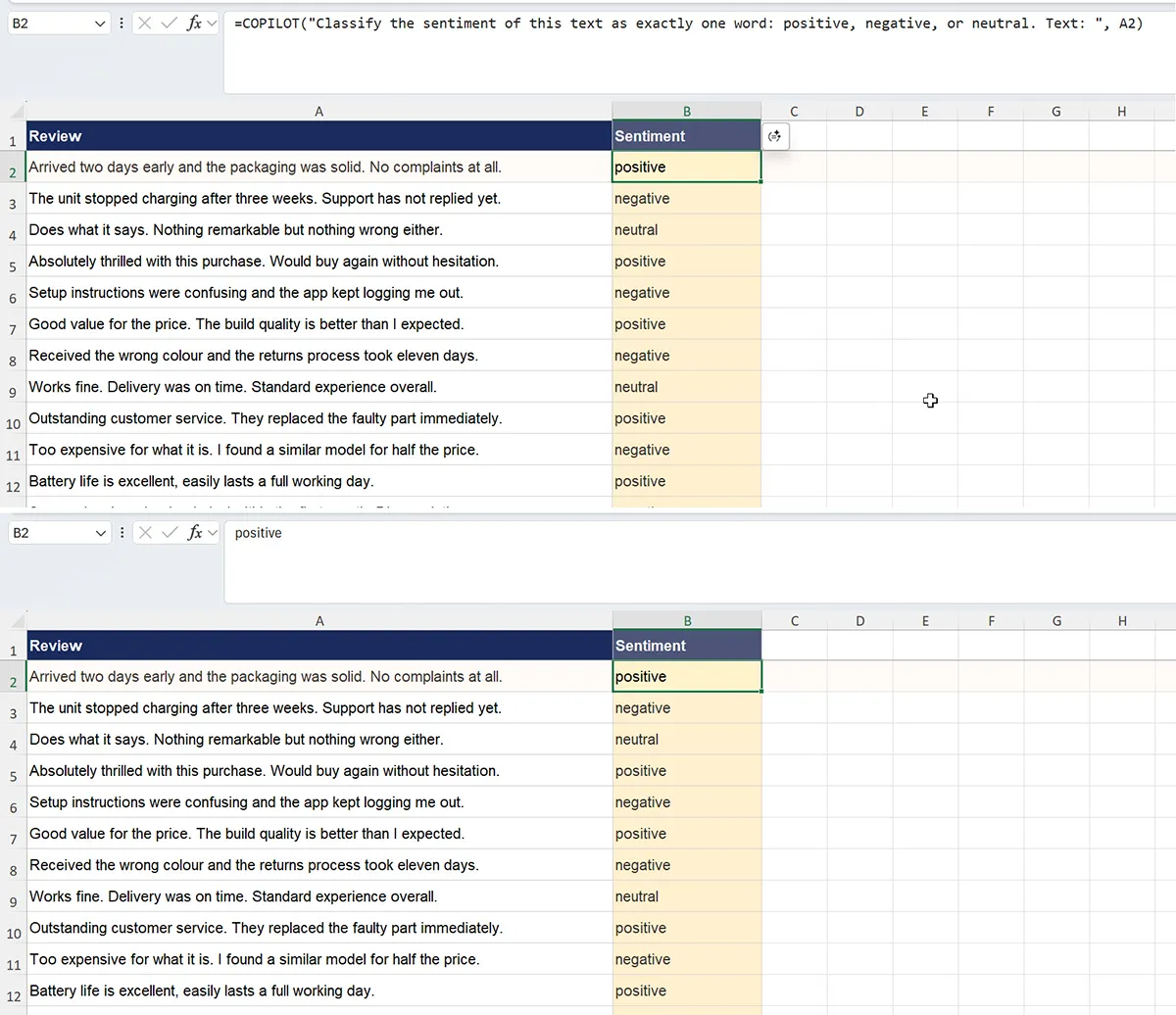
Two Excel formula bar views: the first showing a live =COPILOT() formula, the second showing the same cell containing only the word positive after conversion to a static value
Before and after. The cell looks identical either way — the difference is only visible in the formula bar, which is exactly why this step is easy to forget.

The Basic Conversion

Method 1 — Paste Special over the top

The fastest approach when you want to keep the results exactly where they are:

  1. Select the range containing your =COPILOT() formulas.
  2. Copy (Ctrl+C, or Cmd+C on Mac).
  3. Without moving the selection, right-click and choose Paste Special.
  4. Choose Values, then OK.

The formula bar will now show the text itself rather than a formula. That cell is now permanent.
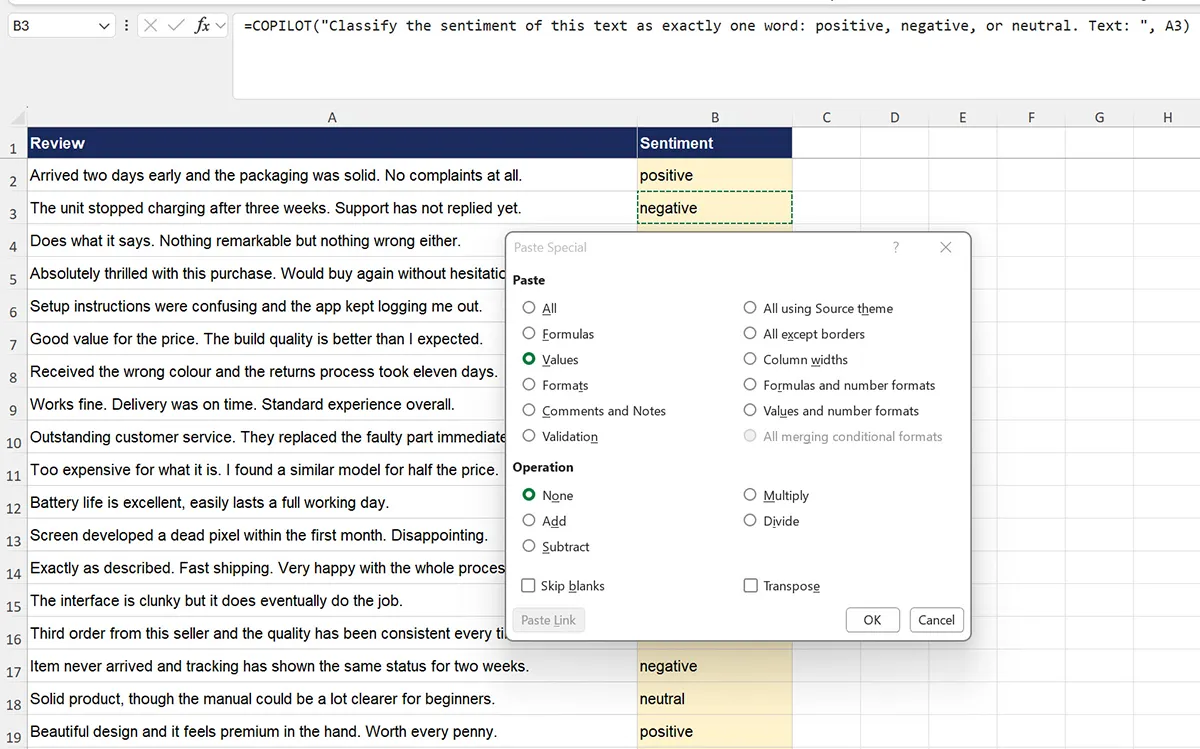
Excel Paste Special dialog box with the Values option selected, used to convert =COPILOT() formulas into static text
Paste Special with Values selected. This is the entire operation — the generated text stays, the formula that produced it is discarded.

Method 2 — Keep the formula alongside the result

If you want a record of which prompt produced which answer — useful for audit trails, or for rebuilding the workflow later on a different tool — do this before converting:

  1. Insert a new column next to your results.
  2. In the first cell, enter =FORMULATEXT(B2), pointing at your first =COPILOT() cell.
  3. Drag down the full range. You now have the prompt text as data.
  4. Convert both columns to values using Method 1.

This is the version we would recommend for anything that touches financial records, where being able to show how a classification was produced matters more than the classification itself.

Checking You Caught Everything

The failure mode here is missing cells, not botching the conversion. Two checks worth running before you close the file:

Find remaining formulas

Press Ctrl+F, click Options, set Look in to Formulas, and search for COPILOT(. Set the scope to Workbook rather than Sheet so it covers every tab. Anything it finds is still live.
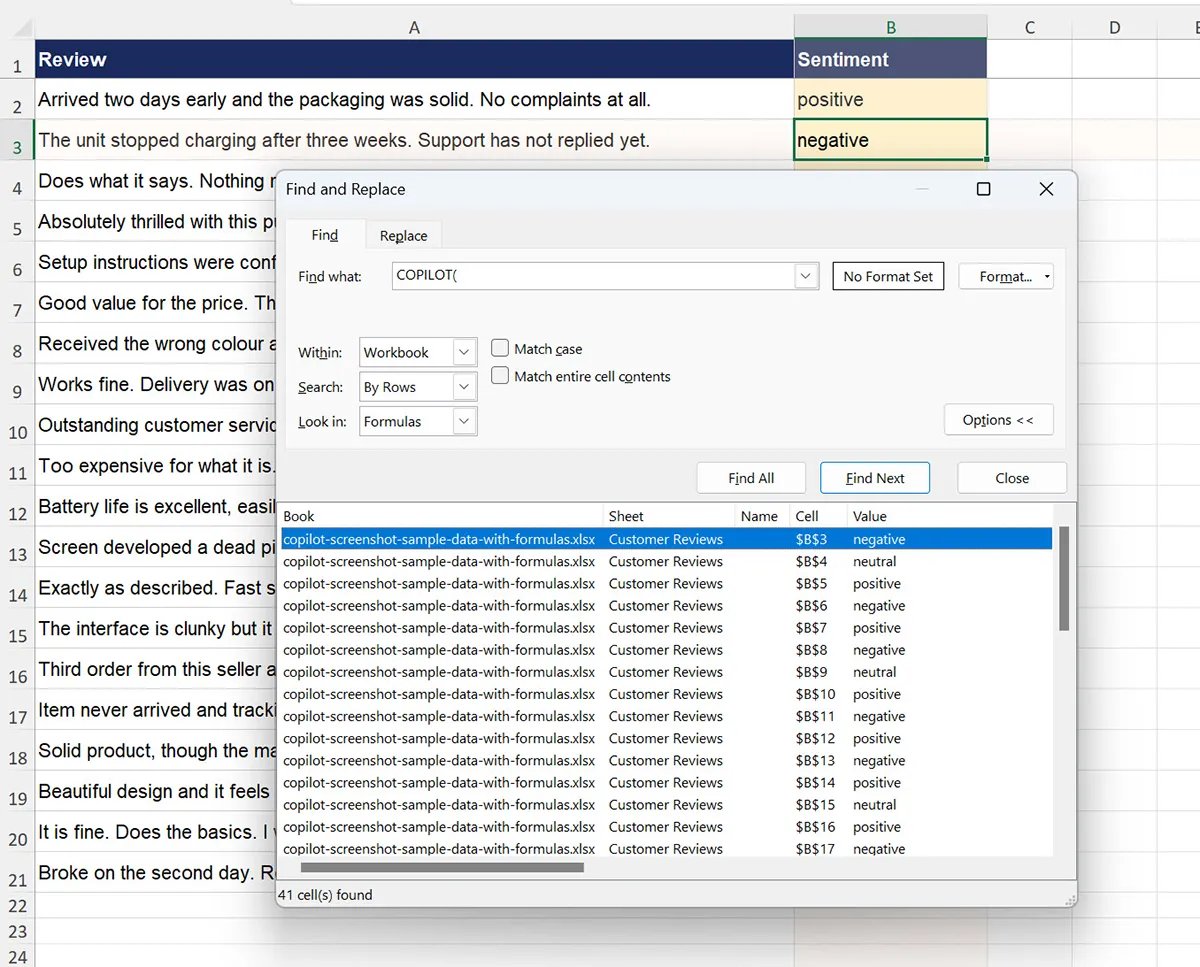
Excel Find and Replace dialog with Look in set to Formulas and Within set to Workbook, searching for COPILOT
Find defaults to searching displayed values on the active sheet only. Both settings have to be changed, or the search will report a clean workbook that is not clean.

Check for hidden and very hidden sheets

Right-click any sheet tab and choose Unhide. Sheets hidden through the VBA editor will not appear there — if the workbook came from someone else and you suspect it has more to it, that is worth checking before you trust a clean search result.

Finding Every Affected Workbook

Converting one workbook is easy. Knowing which workbooks need it is the harder half.

Search each storage location separately, because none of them index the others:

  • Local drives. Windows File Explorer content search will look inside .xlsx files for text.
  • OneDrive and SharePoint. Use the search box within the document library. Content search covers Office file contents.
  • Teams. Files posted in channels live in the associated SharePoint site — search there rather than in the Teams client.
  • Email attachments. The most-missed location. A workbook someone sent you in March is not in any of the above.

Prioritise templates. A template with =COPILOT() in it produces a new broken workbook every time someone copies it, and the person copying it will not know why.

What to Do With Recurring Workflows

Converting to values saves what you already produced. It does nothing for a process that needs to run again next month.

Be honest about which of your uses were genuinely recurring. In our experience most =COPILOT() work was one-off cleanup that felt like it would become a process and never did. For the ones that really do recur:

  • Power Query handles deterministic transformation well — splitting, merging, reformatting, lookups against a reference table. If your “AI” task was actually a rules task, this is the better tool and always was.
  • Office Scripts can call an external API and write results back to cells, which is the closest structural match to what the function did. It requires someone comfortable writing TypeScript.
  • Third-party add-ins provide worksheet-level AI functions directly. This is the closest drop-in replacement, at the cost of introducing another vendor and another data-processing agreement to review.
  • The Copilot side pane covers ad-hoc analysis and summarisation, but will not populate a column. See our side pane comparison for where the line falls.

One Thing Worth Doing Anyway

Before you convert, take a moment to sample the output you are about to make permanent.

=COPILOT() produced plausible-looking wrong answers with no error to flag them. Converting to values makes those wrong answers permanent and removes the evidence of how they were generated. If you are freezing a classification column that feeds a report, spot-check twenty rows first.

Our errors and diagnostics guide covers the silent-failure problem in more depth, including why it is the most dangerous of the function’s failure modes.

Frequently asked questions

Only if you need to keep the generated output. Microsoft has not confirmed whether existing formulas keep working after the retirement date, so converting is the only way to guarantee the text survives. It takes a few minutes per workbook and it protects you regardless of which way the behaviour goes.

Select the range, copy it, then right-click on the same selection and choose Paste Special followed by Values. The formulas are replaced by the text they currently display. The formula bar will show plain text afterwards, which is how you confirm it worked.

Yes. Before converting, add a helper column using FORMULATEXT pointing at each =COPILOT() cell. That captures the full prompt as text. Convert both the results column and the helper column to values together. This is worth doing for anything feeding a financial or client-facing process.

Search each storage location separately, because they do not index each other. Cover local drives, OneDrive, SharePoint document libraries, files posted in Teams channels, and email attachments. Within a workbook, use Find with Look in set to Formulas and scope set to Workbook so hidden sheets and other tabs are included.

It depends on the task. If the work was really rules-based, Power Query is a better fit and is deterministic. If it genuinely needs a language model per row, Office Scripts calling an external API is the closest structural match, or a third-party add-in that provides worksheet-level AI functions. The Copilot side pane does not populate cells and cannot replace this pattern.

Yes. The function produced confident-sounding wrong answers with no error to flag them, and converting to values makes those permanent while removing the prompt that generated them. Sample twenty rows before freezing any column that feeds a report or a client deliverable.

Testing methodology

Last tested Sep 12, 2026
Versions tested Excel for Microsoft 365, Windows 11 and macOS Paste Special and FORMULATEXT behaviour verified in Excel for Microsoft 365, September 2026 Retirement date sourced from Microsoft 365 Message Center notice MC1454373

The conversion steps in this post were performed in Excel for Microsoft 365 on Windows 11 and macOS in September 2026, on workbooks containing live =COPILOT() formulas produced during our earlier prompt testing.

What we verified hands-on: Paste Special to Values correctly replaces =COPILOT() formulas with their displayed text, FORMULATEXT captures the full prompt string including the cell reference, and Find with Look in set to Formulas and Within set to Workbook locates =COPILOT() occurrences on non-active and hidden sheets.

What we did not test: behaviour of the function after September 14, 2026, which had not occurred at the time of writing. Statements about post-retirement behaviour are explicitly framed as unconfirmed throughout.

Search guidance for OneDrive, SharePoint and Teams reflects standard Microsoft 365 content-search behaviour and was not exhaustively tested across every tenant configuration.

Common errors and what they mean

If you're hitting an error or unexpected behavior, here's what each one means and the fastest path to resolving it.

Error Why it happens How to fix it
Paste Special is greyed outThe clipboard was cleared, or the copy step was skipped or interrupted.Re-copy the range immediately before pasting. Avoid clicking into other applications between the copy and the paste.
Formula bar still shows =COPILOT after pastingPaste Special ran with an option other than Values, such as Formats.Repeat the paste and confirm Values is the selected option before clicking OK.
Find cannot locate COPILOT formulas that you know existFind defaults to searching displayed values rather than formulas, and defaults to the active sheet only.Open Find, click Options, set Look in to Formulas and set Within to Workbook, then search for COPILOT( again.
Converted values look wrong after the factThe underlying output was already incorrect, and converting made it permanent while discarding the prompt.Recover from an earlier version of the file through OneDrive or SharePoint version history, then sample the output before converting again.
A shared template keeps producing broken workbooksThe master template still contains live formulas even though your own copy was converted.Convert the template itself, save it back to its original location, and tell the people who copy from it to take a fresh copy.
FREE · 12 PAGES

30 Copilot Prompts for Accounting Firms

Sent straight to your inbox. No account, no upsell.

No spam. One reply unsubscribes you.