
You got =COPILOT() to show up in Excel. The formula bar autocompletes. The function runs. But now it is throwing errors during execution. Or worse — it is running and returning answers, except the answers are wrong.
That is a different troubleshooting problem from “the function does not show up at all” — that is covered in our why =COPILOT() is not showing in Excel guide.
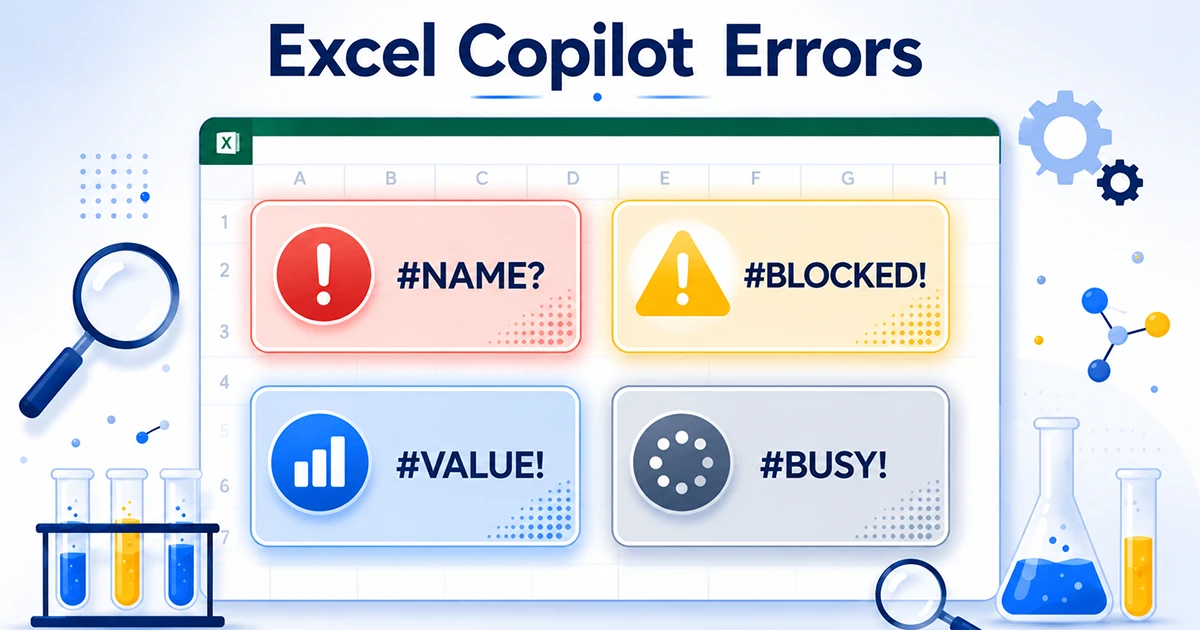
This guide is for the errors that appear once the function is working: #NAME?, #BLOCKED!, #VALUE!, #BUSY!, and the worst failure of all — no error, just wrong answers. For each, I cover what actually causes it, what to check before opening a Microsoft Support ticket, and PowerShell commands where they help.
This is written for IT admins, power users, and consultants debugging Copilot deployments. If your end users are reporting these errors, start here.
Quick Decision Tree: Which Error Are You Seeing?
Match what is appearing in the cell:
#NAME?after licensing is confirmed — Build recognition or cache issue. See Section 1.#BLOCKED!consistently — Policy or sensitivity label restriction. See Section 2.#VALUE!intermittently — Input size or content issue. See Section 3.#BUSY!or extreme slowness — Rate limit throttling. See Section 4.- No error, but the answer is wrong — Hallucination (silent failure). See Section 5. This is the one that should worry you the most.
If =COPILOT() is not showing up at all (no autocomplete, not in function list), that is a different problem covered in Why =COPILOT() Is Not Showing in Excel.
Section 1: #NAME? After License is Confirmed
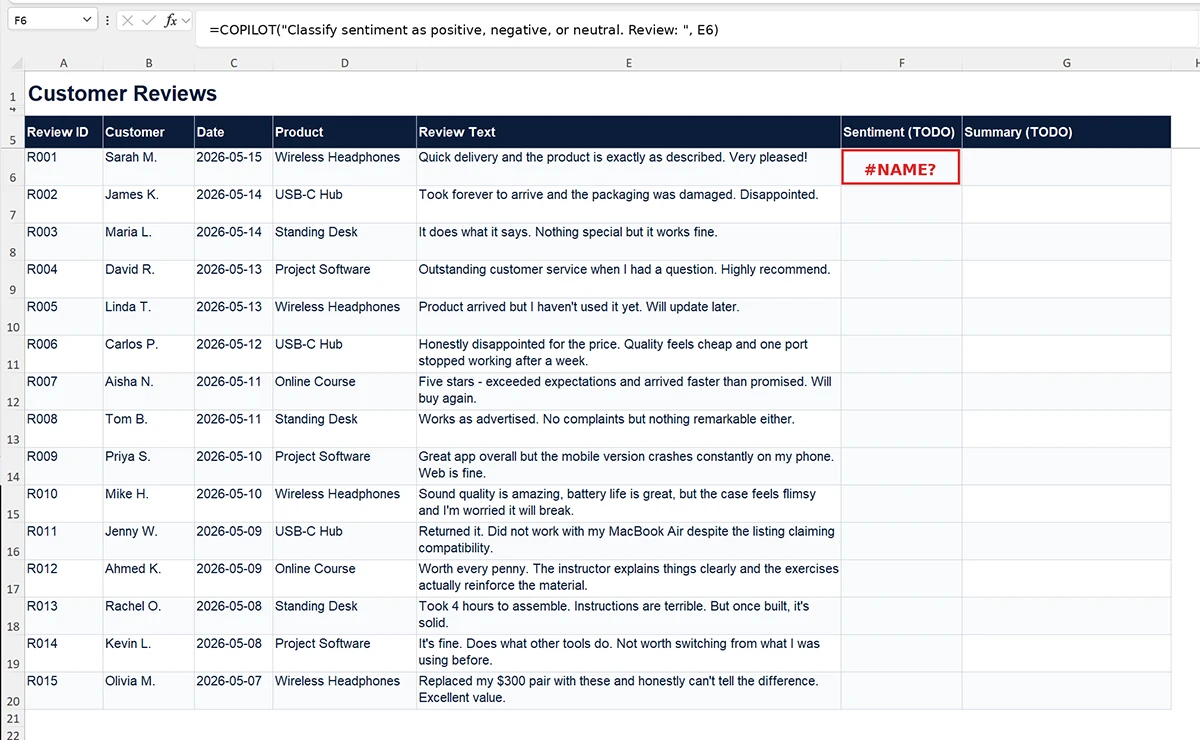
This one is frustrating because everything looks correct. License is assigned. User is on Beta Channel. You can verify both in Admin Center. But the function still returns #NAME?. Three things to check before you waste an hour on a Microsoft Support ticket.
(a) Office cache desync after recent license assignment
This is the most common cause when everything else looks right. The Office client maintains a local cache of available features that does not always update immediately when license changes happen server-side. Excel may still “think” the user does not have access.
Fix:
- Close Excel completely (check Task Manager — kill any remaining excel.exe processes)
- Clear the Office cache: navigate to
%localappdata%MicrosoftOffice16.0Wefand delete the contents (this is the Web Extensions Framework cache) - Restart Excel
- If still broken, sign out completely: File → Account → Sign out, then sign back in
Allow 30 to 60 minutes for license changes to propagate before troubleshooting further. If you escalate to Microsoft Support before waiting an hour after a license change, the first thing they will ask is whether you waited.
(b) Add-in conflict
Excel add-ins occasionally interfere with newer functions. If a user has third-party add-ins — especially older ones that hook into the formula engine — they can prevent =COPILOT() from registering properly.
Fix: Disable add-ins one by one in File → Options → Add-ins → Manage: COM Add-ins → Go. Test after each disable. The usual suspects: legacy financial modeling add-ins, older XLL files from vendor-specific tools, and anything that overrides function autocomplete.
(c) Build incompatibility
Some Beta Channel builds shipped with bugs that affected =COPILOT() registration. If you are on a very recent Beta build with reported issues, check the Office Insider blog for known issues, or roll back via Update Options.
Section 2: #BLOCKED! Deep Dive
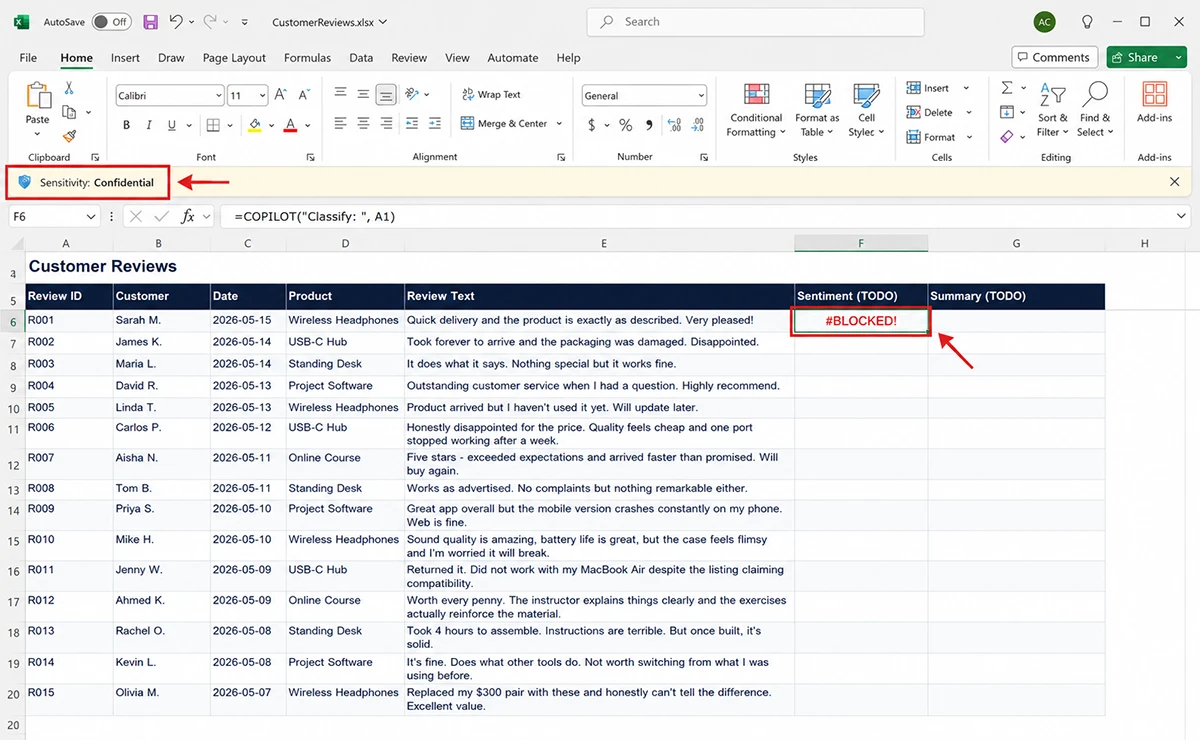
If your users are in regulated industries — legal, healthcare, finance, government contractors — you will see #BLOCKED! regularly. The error has three potential sources, each requiring a different fix path. Identify which one before you start changing things.
(a) Sensitivity Label (Microsoft Purview)
If a sensitivity label like “Confidential” or “Highly Confidential” is applied to the workbook, Microsoft Purview can restrict Copilot from processing the content. This is the most common #BLOCKED! trigger in regulated industries.
How to check:
- Look at the Excel ribbon — the sensitivity label name displays at the top right (for example, “Sensitivity: Confidential”)
- Or: File → Info → Sensitivity shows the current label
- Test by creating a new blank workbook (unlabeled) and trying the same formula. If it works in the unlabeled workbook, you have your answer.
How to fix:
- If you have permissions: change the label to one without AI restrictions (typically “General” or “Internal”)
- If the label is required by policy:
=COPILOT()cannot be used on that workbook. That is the label working as designed. Do not try to bypass it. Move the work to an unlabeled scratch workbook, run your AI processing there, and bring results back manually after review.
(b) DLP (Data Loss Prevention) policy
Microsoft Purview DLP policies can block Copilot from processing content that matches patterns — credit card numbers, SSNs, internal codes. The DLP engine inspects what would be sent to the LLM and blocks it if it matches a policy rule.
How to check (admin):
- Sign into Microsoft Purview portal
- Navigate to Data Loss Prevention → Policies
- Look for policies that mention “Copilot” in their scope, or that target sensitive info types
- Check the policy’s audit logs to see if the user’s workbook content matched a rule
How to fix: Either add exceptions to the DLP policy (work with your compliance team — do not just edit it yourself, those policies exist for a reason), or remove the matching content from the workbook before running =COPILOT().
(c) Tenant-level Copilot content restrictions
Tenant admins can set policies that restrict what Copilot can process. This is configured in:
- Microsoft 365 Admin Center → Settings → Org settings → Microsoft 365 Copilot
- Or via the Microsoft 365 Apps Admin Center policies that target Copilot specifically
Look for policies that restrict AI processing by content type, file location, or user group. If the user is in a restricted group, they will get #BLOCKED! on workbooks the policy applies to — even if no label or DLP rule is involved.
Section 3: #VALUE! Deep Dive
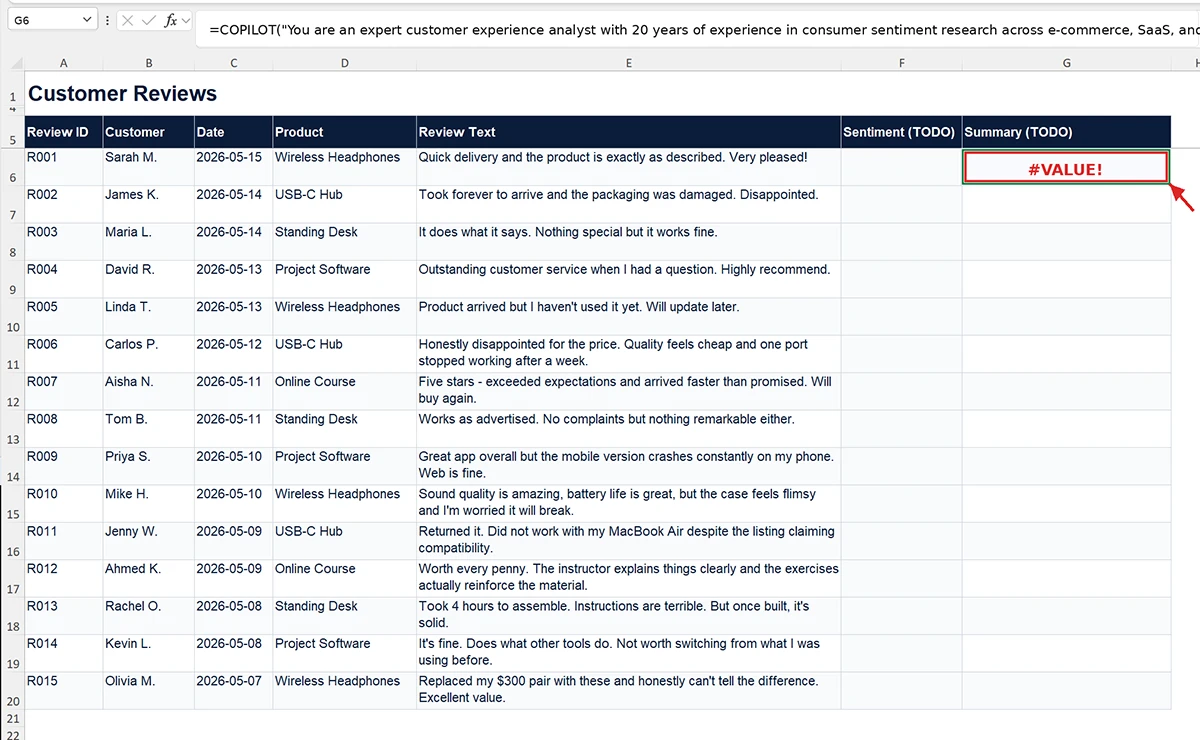
#VALUE! is what happens when somebody tries =COPILOT() for the first time and pastes their entire customer list into the prompt. The function can technically execute, but the inputs are too large or incompatible. Three common causes:
(a) Prompt + data exceeds token limit
Microsoft enforces a token limit per =COPILOT() call. Our testing puts the practical limit at roughly 4,000 tokens. If your prompt plus the referenced cell contents exceed this, you get #VALUE!.
Rough rule: 1 token is approximately 4 characters of English text. A 4,000 token limit translates to roughly 16,000 characters or about 3,000 words of input.
Fix:
- Shorten the prompt itself
- Reduce the cell range size
- Split large text into multiple cells, then run
=COPILOT()on each separately - For summarization tasks on long text, pre-truncate using
=LEFT(A2, 3000)or similar
The mistake people make: they assume =COPILOT() can swallow an entire column of data the way SUMIF can. It cannot. Treat each call as a small individual request, not a batch operation.
(b) Mixed or incompatible data types in referenced cells
If your prompt references a range that contains a mix of text, numbers, errors, and blank cells, =COPILOT() can return #VALUE!. The function generally expects text input.
Fix: Use =COPILOT("...", TEXT(A2, "@")) to force the referenced cell to text format. For ranges, ensure consistent data types across cells.
(c) Reference to a cell with another error
If =COPILOT() references a cell containing #REF!, #N/A, or any other Excel error, the error propagates and you get #VALUE!. Classic Excel formula behavior — same as how any other function handles upstream errors.
Fix: Use =IFERROR() wrappers around referenced cells, or fix the upstream errors first.
Section 4: #BUSY! and Rate Limiting
If you are running =COPILOT() across 500 cells at once, you are going to hit a rate limit. That is not Microsoft being stingy — every LLM provider does this, because each call costs them real compute.
Microsoft enforces per-user rate limits on =COPILOT() calls. Exact limits are not fully documented, but our testing suggests roughly:
- About 100 calls per 10-minute window per user
- Larger prompts (closer to the token limit) count more heavily toward the limit
- Tenant-level rate limits may apply on top of per-user limits
When you hit the limit, =COPILOT() returns #BUSY! or hangs for 30+ seconds before timing out.
Batch processing strategy
For datasets larger than about 90 rows, use this pattern:
- Run
=COPILOT()on rows 1 to 80 - Wait 10 to 12 minutes
- Run on rows 81 to 160
- Repeat
To prevent accidental re-execution of completed cells (which would count against your rate limit), convert finished =COPILOT() cells to values: Copy → Paste Special → Values. Do this between batches. Otherwise a recalc event can re-fire all the cells and burn through your quota for nothing.
Detecting throttling versus other failures
If formulas process normally for 60 to 80 cells and then start returning #BUSY!, that is the rate limit. If they fail from cell 1, that is not throttling — check Sections 1 through 3 for the actual cause.
Section 5: The Silent Failure — Hallucinations
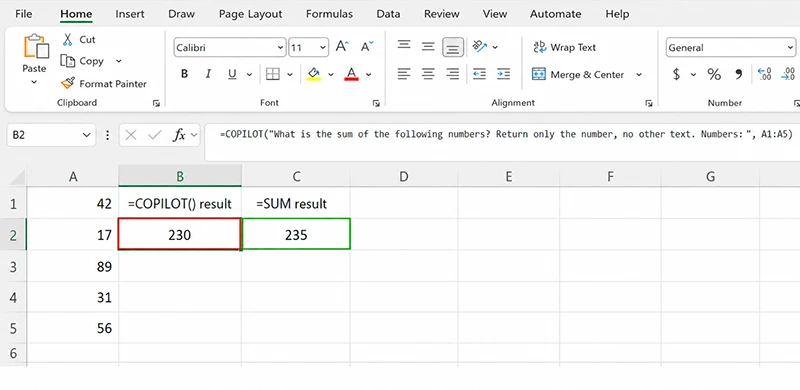
This is the failure mode that should keep you up at night. Not because hallucinations are exotic, but because there is no error message. =COPILOT() returns a confident answer. Some operator pastes it into a deliverable. Nobody checks. Three weeks later somebody notices the numbers do not match the source data, and now you are explaining to a client why their report was wrong.
Examples we’ve seen in testing
- Math: Prompt asks “What is the sum of these values?” → Returns a number that looks plausible but does not actually equal the sum. Off by 4-7% on average in our testing.
- Dates: Prompt asks to extract a date from a description → Returns a date that was not in the source text at all. The LLM invented it from context patterns.
- Categorization: Returns a category that is not in the list of allowed values you specified in the prompt. The LLM made up a new category that sounded reasonable.
- Translation: Returns text in the wrong target language entirely, or invents words that do not exist in either language.
- Data extraction: Prompts asking
=COPILOT()to extract a specific value from a memo field sometimes return a value that does not appear anywhere in the source text. Not paraphrased — invented from patterns.
Why this happens
=COPILOT() runs an LLM (large language model) under the hood. LLMs generate text that statistically matches their training data — they do not actually “understand” your data the way Excel formulas do. When the LLM does not know the right answer, it generates a confident-sounding wrong one rather than saying “I do not know.”
Mitigation patterns
- Constrain the output format strictly. Instead of “Categorize this expense,” use “Return exactly one word from this list: Travel, Software, Meals, Office. Description: [data]”
- Never use for math. Use traditional Excel functions (
SUM,AVERAGE,XLOOKUP) for any calculation that must be exact.=COPILOT()is for text, not arithmetic. - Cross-validate. For critical results, run a deterministic formula alongside and compare. If they differ, investigate.
- Spot-check. Manually review at least 10 to 20 percent of
=COPILOT()outputs before they go into a deliverable. - Add context constraints. “If the data does not clearly match one of the categories, return ‘Uncategorized’ rather than guessing.”
The honest summary: =COPILOT() is useful for fuzzy text tasks where being directionally right is enough. It is dangerous for tasks where precision matters. Know which kind of task you are using it for.
Admin PowerShell Diagnostic Toolkit
For tenant-level verification, these PowerShell commands help confirm Copilot configuration:
# Connect to Microsoft Graph (requires Microsoft.Graph PowerShell module)
Connect-MgGraph -Scopes "User.Read.All", "Directory.Read.All", "Policy.Read.All"

# Check what licenses a specific user has assigned
Get-MgUserLicenseDetail -UserId user@yourtenant.com

# Find all users with a Microsoft 365 Copilot license assigned
Get-MgUser -All -Property AssignedLicenses,DisplayName |
    Where-Object { $_.AssignedLicenses.SkuPartNumber -like "*Copilot*" } |
    Select-Object DisplayName, UserPrincipalName

# Inspect tenant sensitivity labels and their AI processing settings
# Requires Microsoft.Graph.Compliance module
Get-Label | Select-Object Name, IsParent, Disabled, Settings
For DLP policy inspection, use the Microsoft Purview portal rather than PowerShell. The DLP cmdlets are split across multiple modules and the syntax frequently changes between versions. The portal is more reliable for one-off diagnostics.
When to Escalate to Microsoft Support
Microsoft Support tickets on Copilot issues currently take 5 to 10 business days for first response in our experience — sometimes longer for tier-2 escalations. So escalate strategically, not first. Open a ticket when:
- You have verified license, channel, and tenant policy are correct, but
#NAME?persists across multiple users and devices #BLOCKED!errors appear with no detectable matching policy or label (this can indicate a backend issue)- Rate limits seem unusually low compared to documented behavior — Microsoft can sometimes increase tenant-level limits on request, but only if you have data showing the limit being hit
- The function works for some users in a license group but not others with identical configuration
When you file a ticket, include:
- Tenant ID
- Specific user UPN and their assigned licenses (output from
Get-MgUserLicenseDetail) - Excel build number (File → Account → About Excel)
- Exact error message and the formula that produces it
- Whether the issue is intermittent or consistent
- Screenshots of the error
Doing this upfront saves you a 30-minute back-and-forth where the support engineer asks for basic config you should have provided in the ticket body.