
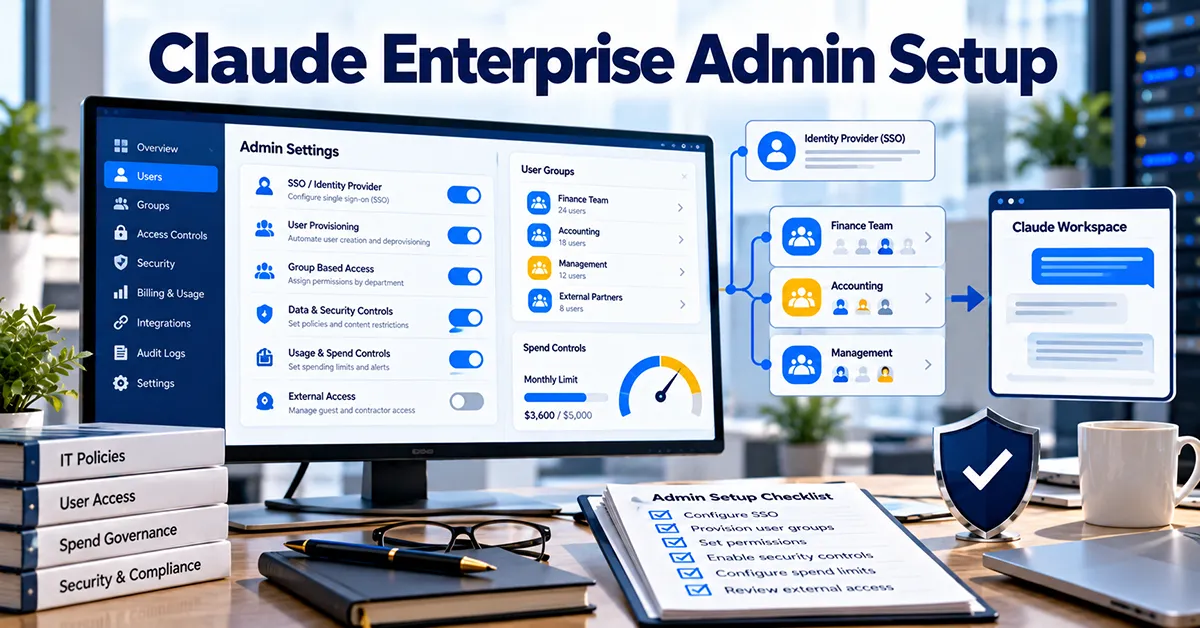
I set up Claude Enterprise for a SaaS company: single sign-on through Microsoft Entra ID, seats provisioned automatically from Entra group membership, and spend limits per group. None of it is difficult, but the order matters, and a couple of settings can lock people out or delete data if you get them wrong.
This is the sequence I’d follow again, with the settings I’d check along the way. It’s written for the person in a small firm who ends up being “the IT person”, as well as for full-time admins.
Product details in this guide were last checked against Anthropic’s official help pages in October 2026. Plans and features change often, so confirm on the vendor’s site before you buy or configure anything.
On Team rather than Enterprise? Use this as a map of what applies. SCIM provisioning, groups, group spend limits, audit logs, custom retention and domain capture are Enterprise only. There’s a short section for Team near the end.
Before you start
- The right plan. Single sign-on and just-in-time provisioning are on Team and Enterprise. SCIM provisioning, groups, group spend limits, audit logs and custom data retention are Enterprise only.
- The right role. Identity settings need an Owner or the Primary Owner in Claude.
- DNS access for your email domain, to add a verification record.
- Entra ID admin rights, and a Microsoft Entra ID P1 or P2 license if you want SCIM provisioning.
- A group plan. Decide which Entra groups will get seats, which get Premium seats, and who will be an admin, before you configure anything.
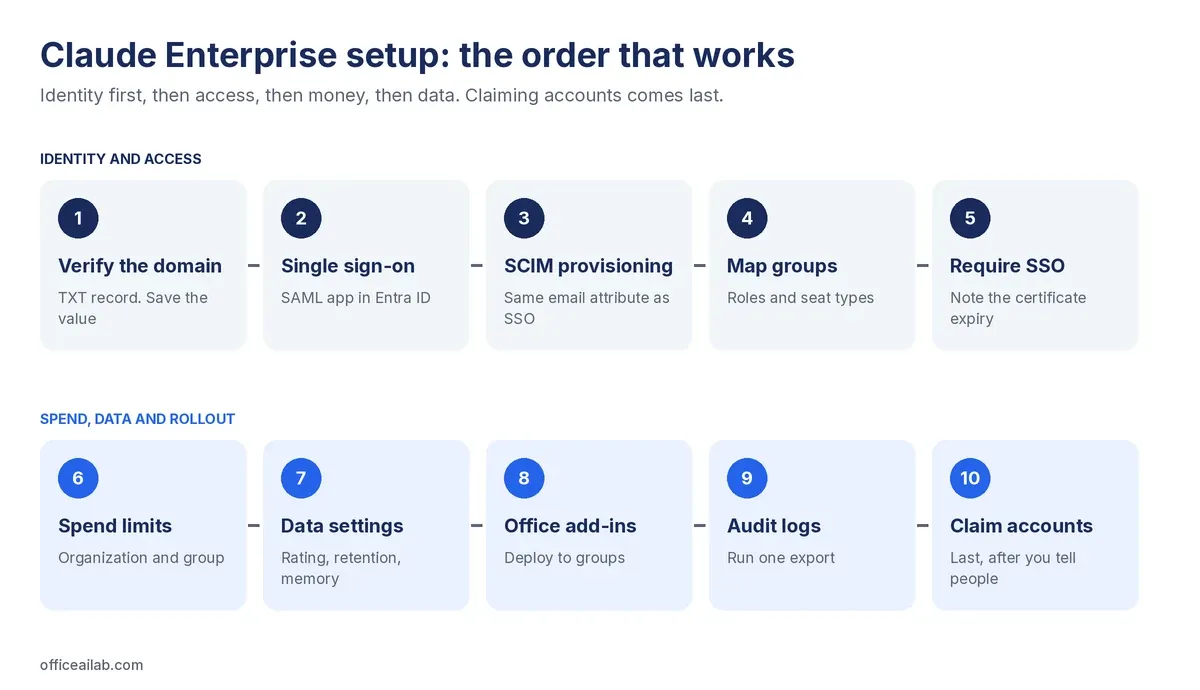
Step 1: Verify your domain
In Claude, go to Organization settings → Identity and access, add your domain, and add the TXT record it gives you at your DNS provider. The value starts with anthropic-domain-verification-.
Copy the value somewhere safe before you leave the page. Anthropic notes that once the domain shows as Pending, the admin console doesn’t display the value again. DNS changes can take from ten minutes to 48 hours to be seen everywhere.
Step 2: Set up single sign-on in Entra ID
Anthropic uses WorkOS for single sign-on setup, so the values you need come from a WorkOS setup flow launched from Claude’s admin settings. In the Entra admin center:
- Go to Enterprise applications → New application. Search the gallery for Claude, or create your own application with Integrate any other application you don’t find in the gallery.
- Under Single sign-on → SAML, enter the Identifier (Entity ID) and Reply URL from the WorkOS flow, and set the Sign-on URL to
https://claude.ai/login. - Check the email claim. Anthropic’s guide says to send
user.mail, or whichever attribute you’ll also use for SCIM. - Download the Federation Metadata XML and upload it in the WorkOS flow.
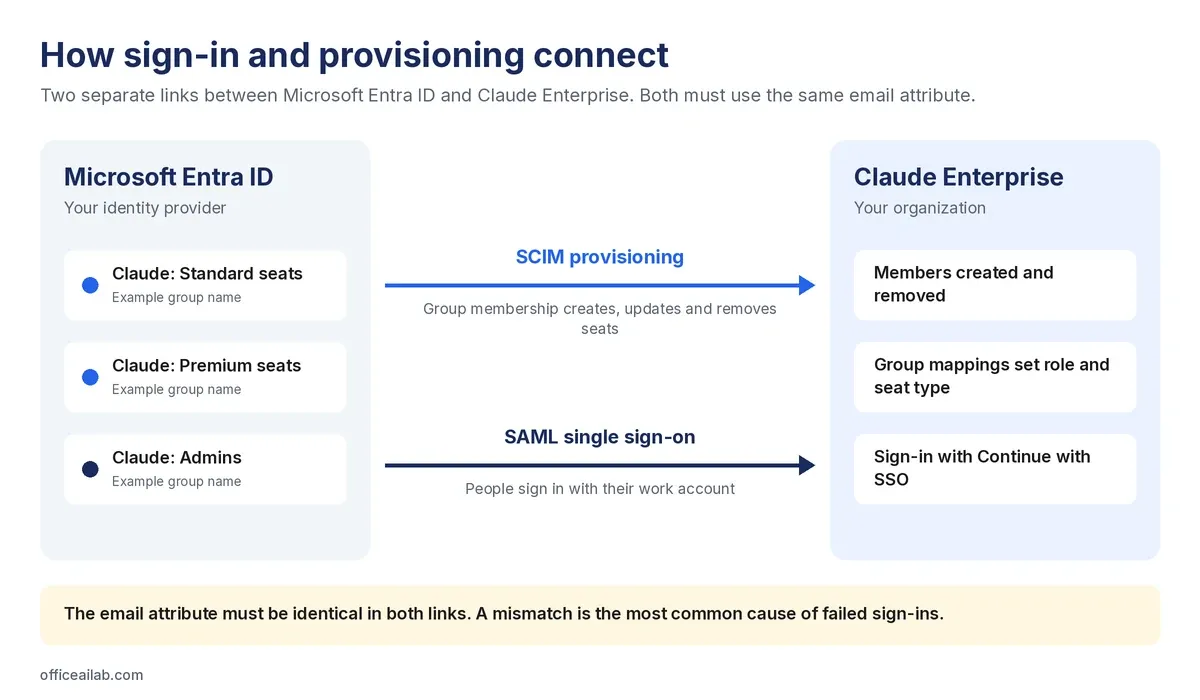
The one thing Anthropic calls out as the leading cause of login failures: the email attribute used for single sign-on and for SCIM must be identical. If some users’ mail and user principal name differ, decide which one you’re using and use it in both places.
Step 3: Turn on SCIM provisioning
SCIM is what makes group membership in Entra control access to Claude. In the same enterprise application:
- Go to Provisioning → Get started and set Provisioning Mode to Automatic.
- Enter the Tenant URL and Secret Token from the WorkOS flow, then click Test Connection.
- Under Mappings, confirm the email attribute matches the one in your single sign-on claim.
- Under Users and groups, assign the groups that should have Claude. Anthropic is explicit that only assigned people and groups are provisioned and allowed to sign in.
With SCIM, people removed from the Entra app are removed from Claude automatically. That’s the main reason to choose it over just-in-time provisioning: with JIT, someone unassigned in Entra can no longer sign in, but they keep their seat in Claude until an admin removes them.
Step 4: Map groups to roles and seats
Once groups sync across, you can map them to roles and seat tiers, so being in an Entra group decides both whether someone has Claude and what kind of seat they get. Three things to know:
- Everyone must be in a mapped group. Anthropic warns that saving the mapping before users are properly assigned will remove those users from the organization. Check membership first.
- Mappings override manual changes. With group mappings on, roles and seat tiers are enforced by the mapping and can’t be changed by hand in Claude.
- Syncs aren’t instant. Changes usually come through within minutes but can take hours at busy times. A full manual resync takes about a minute per 100 members.
Start with a small pilot group, check that seats and roles come through as expected, and only then assign the wider groups.
Step 5: Require single sign-on
Once a test user can sign in through Entra, switch on Require SSO for Claude. From then on, people sign in with Continue with SSO, and their access follows their Entra account.
One warning from Anthropic deserves a calendar reminder: if single sign-on is required and your SAML certificate expires, nobody in the organization can sign in. Recovery means contacting Anthropic support from an Owner’s email address. Note the certificate’s expiry date in Entra and set a reminder well before it.
Step 6: Set spend limits
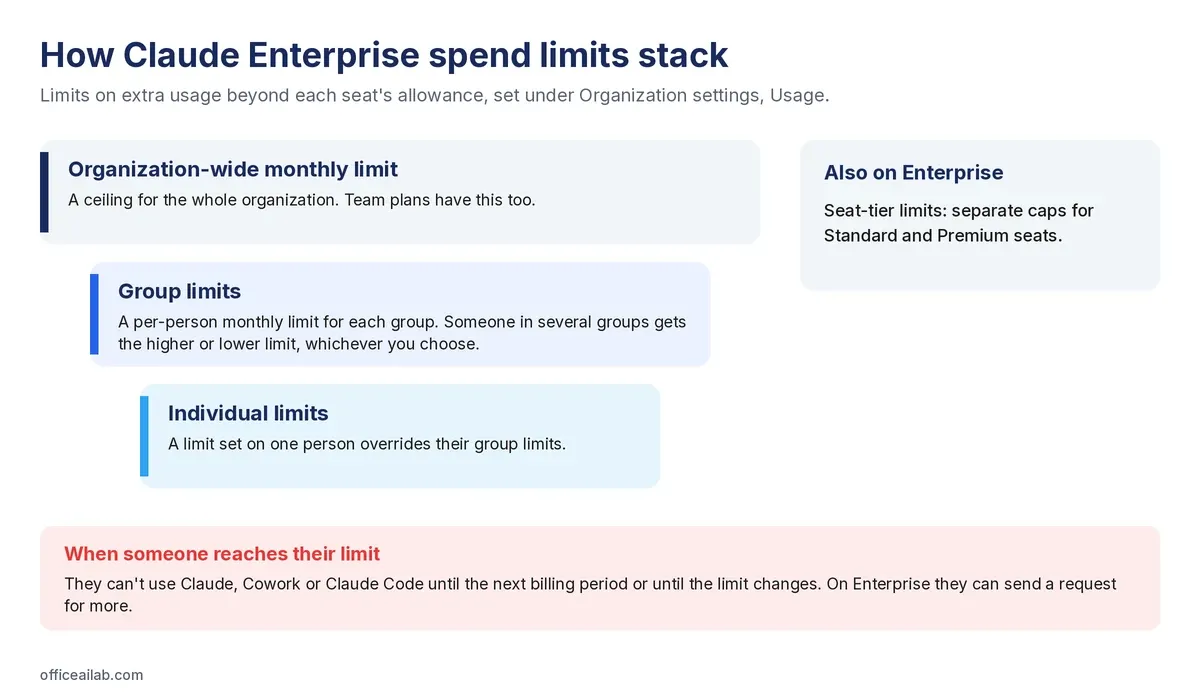
Extra usage beyond each seat’s included allowance is billed separately, so limits are worth setting on day one. They live under Organization settings → Usage.
- Organization-wide monthly limit: a ceiling for the whole organization. Team plans have this too.
- Group limits (Enterprise): on the By group/tier tab, set a per-person monthly limit for each group. Limits set on an individual override group limits, and if someone is in several groups you choose whether the higher or lower limit applies.
- Seat-tier limits (Enterprise): separate caps for Standard and Premium seats.
When someone reaches their limit, Anthropic says they can’t use Claude, Cowork or Claude Code again until the next billing period or until the limit changes. On Enterprise, members can send a request for more, which admins see under Review requests.
Step 7: Review data and privacy settings
These settings decide what happens to your organization’s data. All of them are worth a deliberate decision rather than the default. Give staff our pre-upload check for client files alongside them, because settings don’t stop someone uploading the wrong file.
| Setting | Where | What to know |
|---|---|---|
| Chat rating | Organization settings → Data and Privacy | Rated conversations can be kept for five years and used for training. I’d switch it off |
| Custom data retention (Enterprise) | Organization settings → Data and Privacy | Minimum 30 days. Data past its retention period is permanently deleted and can’t be recovered, so agree the period before you shorten it |
| Memory | Organization settings | Owners decide whether members can use it. Anthropic warns that turning memory off at organization level permanently deletes all memory data for everyone |
| Code execution and file creation | Organization settings → Capabilities | On by default. Network access can be off, package managers only (the default), or package managers plus domains you list. Anthropic says turning network access off removes the risk of data being sent out by a malicious instruction |
Step 8: Deploy the Office add-ins
Claude for Excel, PowerPoint and Word are deployed from the Microsoft 365 admin center under Settings → Integrated apps, assigned to the whole organization or to specific groups. Three things I’d flag:
- Privileged Identity Management. If your admin roles are activated through Entra PIM, the Integrated apps page doesn’t recognize them and deployment fails. Use an account with the role permanently assigned.
- Working across apps is controlled under Organization settings → Office agents. It’s off by default on Team and Enterprise.
- Audit coverage. Add-in activity isn’t in Enterprise audit logs and doesn’t follow custom retention. Anthropic says add-in sessions are covered by the Compliance API, in public beta.
Step 9: Know where the audit logs are
On Enterprise, Owners can export audit logs from Organization settings → Data and Privacy → Export logs. The export covers the past 180 days, and the download link arrives by email and works for 24 hours. The logs record events such as sign-ins, member changes, project changes, file uploads and single sign-on changes. They include IDs for chats and projects but not their titles or content.
Run one export in your first week so you know what’s in it before you ever need it.
Step 10: Claim existing accounts, last
If staff already use personal Claude accounts on your company email domain, Enterprise domain capture brings them in. Once it’s on, no non-Enterprise accounts can exist on your verified domain. Each affected person is told by email and in the app and has 30 days to bring their existing content across or start fresh. Personal Pro or Max subscriptions are canceled with a prorated refund.
It needs single sign-on enforced, JIT or SCIM provisioning, restricted organization creation and a verified domain first, which is why it’s the last step. Tell people before you switch it on. A surprise email about their account being claimed is the quickest way to lose goodwill for the whole rollout.
If you’re on Team
Team gives you single sign-on, just-in-time provisioning, roles, central billing and an organization-wide spend limit. It doesn’t include SCIM, groups, group spend limits, audit logs or custom retention. Steps 1, 2, 5 and most of 6 and 7 still apply. Without SCIM, build a habit of removing leavers in Claude as part of offboarding, because removing them from the identity provider alone doesn’t free their seat.
After setup
The settings are the easy part. Write a one-page policy covering which account to use, which files can go in and who to ask, then review usage at 30, 60 and 90 days. For the wider picture of where Claude fits in finance work, see our guide to Claude for accounting firms and finance teams. Shared projects are usually the next thing people ask for, and our guide to Claude Projects for finance teams covers permissions and what to keep out of them.
Our free Claude admin rollout checklist puts every step above, plus the policy and review points, on a few printable pages. If you’re rolling out Microsoft 365 Copilot as well, the Copilot rollout checklist for small firms does the same for Microsoft’s side.
Sources: official pages, checked October 2026
- Set up single sign-on (SSO)
- Microsoft Entra ID SSO setup
- Set up JIT or SCIM provisioning
- How SCIM sync works for Enterprise organizations
- Groups and group spend limits
- Usage credits and spend limits
- Configure custom data retention for Enterprise
- Chat search and memory (organization controls)
- Create and edit files with Claude (network access)
- Use Claude for PowerPoint (deployment and PIM note)
- Work across Microsoft 365 apps
- Access audit logs
- Claim and migrate accounts on your domain
- Roles and permissions