
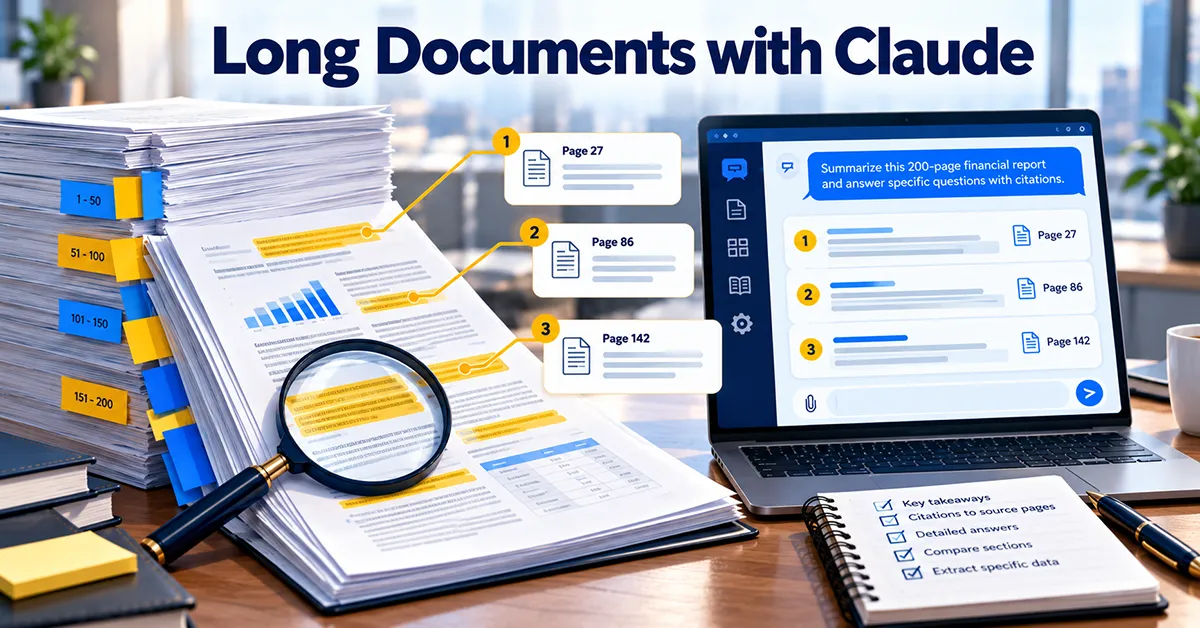
Long documents are where Claude earns its keep in a finance team. An annual report, a 90-page lease, a credit agreement, a policy manual: files you need answers from but don’t have time to read twice. Claude can read all of it at once. The trouble is that a smooth, confident summary of a 200-page file can be wrong in ways you’d never spot without reading it yourself, which defeats the purpose.
The fix is a method rather than a better prompt. Map the document first, pull facts out mechanically, ask questions that come back with page references, and summarize in two stages. Here’s how, with the prompts I use. For where long documents fit among Claude’s other uses in finance, see our guide to Claude for accounting firms and finance teams.
Product details in this guide were last checked against Anthropic’s official help pages in October 2026. Plans and features change often, so confirm on the vendor’s site before you buy or configure anything.
What Claude can take
| Limit | What Anthropic says | What it means for you |
|---|---|---|
| Working memory (context window) | 200,000 tokens on paid plans, roughly 500 pages of text. Several newer models handle 1 million | A typical annual report fits in one conversation |
| PDF length | Up to 1,000 pages | Even very long filings can be uploaded whole |
| Charts and images in PDFs | Read in PDFs of 100 pages or fewer. Over 100 pages, text only | In a long report, figures inside charts or scanned tables won’t be read. Check those yourself or upload just those pages |
| File size | 500 MB per file in a chat, 30 MB per file in a project | Large scanned files may need to go in the chat, not the project |
| Files per chat | Up to 20 | Enough to compare several versions or agreements |
The chart limit is the one to remember. Annual reports often put key numbers in graphics, and on a long file Claude simply won’t see them. Don’t assume it will tell you, so ask.
Step 1: Map before you dig
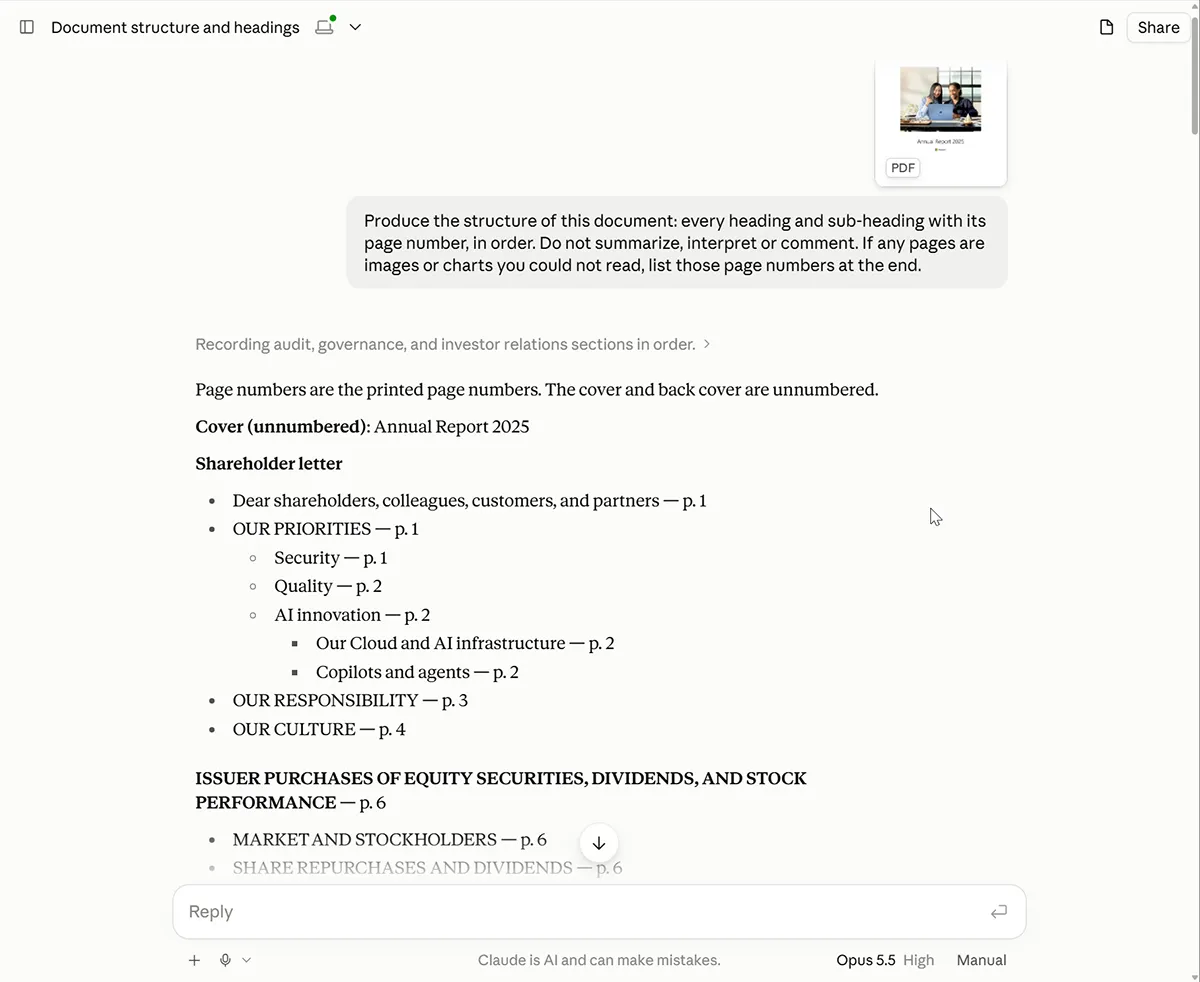
Before asking anything substantive, get the structure. You decide where to look next, not the model.
Produce the structure of this document: every heading and sub-heading
with its page number, in order. Do not summarize, interpret or comment.
If any pages are images or charts you could not read, list those page
numbers at the end.
The last sentence matters. It turns a silent gap into a list you can check.
Step 2: Pull facts out mechanically
Extraction is the job Claude does most reliably. Bring the facts out with their locations, then do the checking yourself.
List every monetary amount, date and deadline in sections [X] to [Y],
with the page number and the sentence it appears in.
Do not total, check or interpret them.
List every sentence in this document containing "must", "shall",
"will", "is required to" or "agrees to". Give the page, the party bound,
and the exact wording.
The second one is a mechanical sweep for obligations, and it’s more thorough than careful reading of a long file usually is.
Step 3: Ask questions that come back with page references
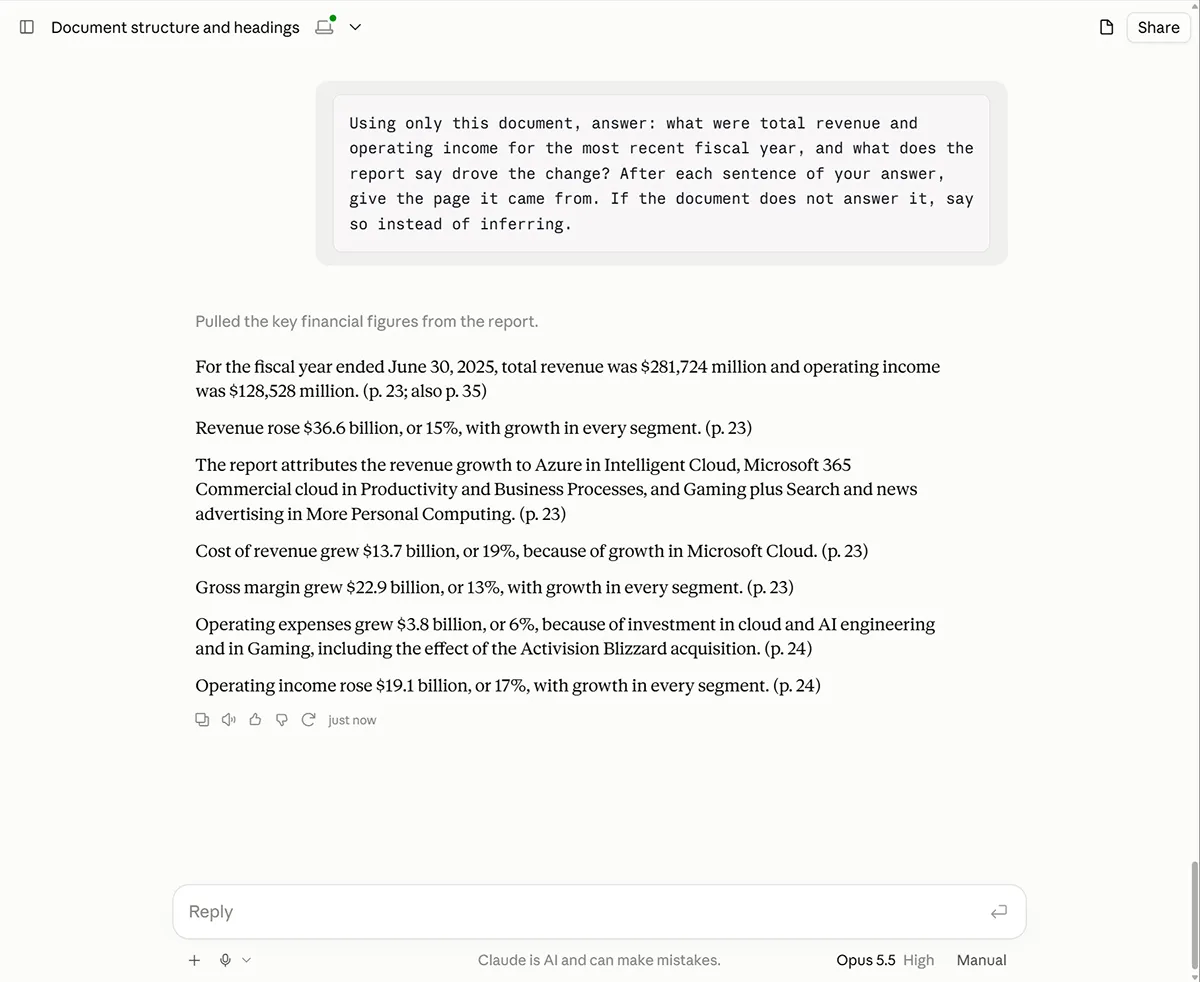
Using only this document, answer: [QUESTION].
After each sentence of your answer, give the page it came from.
If the document does not answer it, say so instead of inferring.
An answer you can check in ten seconds is worth five you’d have to re-read the document to verify. Per-sentence page references are what make that possible.
A page reference isn’t proof. It’s a faster way to check the proof yourself. Open the page.
Be careful with “it doesn’t say”
“There’s no clause about X” is a much bigger claim than finding one, and less reliable. When Claude says something isn’t there, test it:
You said this document does not address [TOPIC]. List every term and
phrase you searched for, and quote the three passages that came closest.
Then run your own search in the PDF for the same words. If it’s important, absence needs two checks.
Step 4: Summarize in two stages, not one
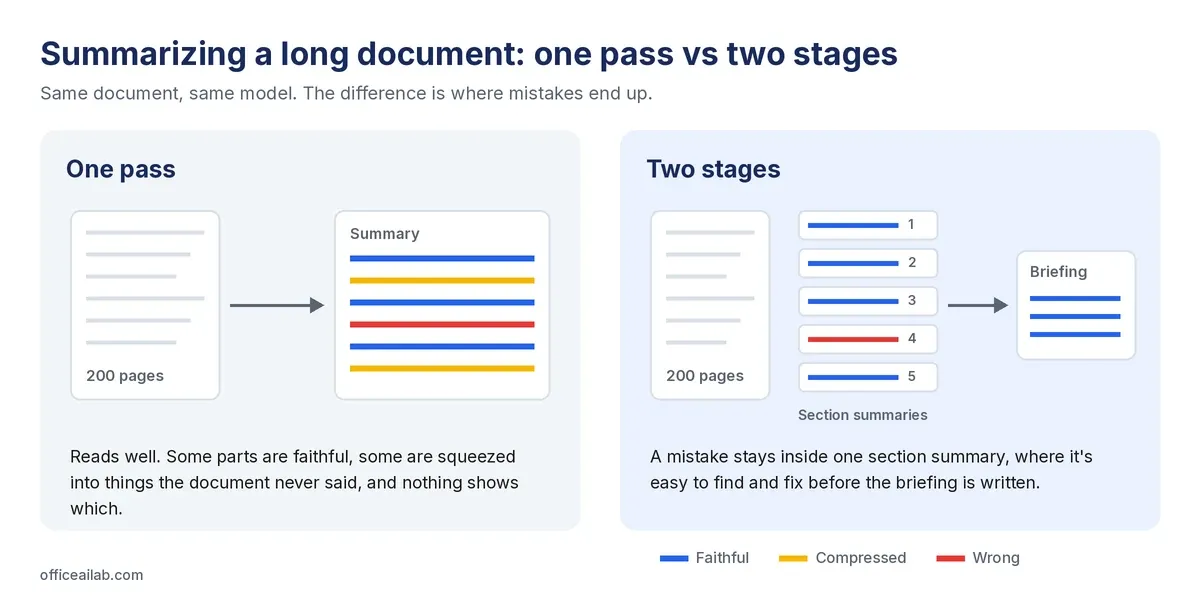
Asking for a summary of a 200-page file in one go produces something that reads beautifully and is unevenly wrong. Some sections come through faithfully, others get squeezed into something the document never quite said, and nothing in the output tells you which is which.
Do it in two stages instead:
Summarize each top-level section in no more than [N] words, in document
order. Keep every figure exactly as written. Do not merge or reorder sections.
From these section summaries, write a [N]-word briefing for someone
who will not read the document: what it is, what it commits us to,
what to watch, and what is unclear. Cite sections throughout.
Mistakes stay inside one section, where they’re easy to find, instead of spreading through the whole briefing.
Step 5: Check before you rely on it
- Spot-check the quotes. Open the PDF at three cited pages and confirm the wording matches exactly.
- Check the figures that matter against the source, not against Claude’s summary.
- Look at the pages it couldn’t read. Charts and scanned tables in long files are yours to check.
- Start a new conversation for a new question. In a long thread, an early misreading can carry through every later answer.
- Write down what you didn’t check. One line in the file: which document, which version, what was reviewed by hand, what wasn’t.
Our free AI output verification checklist turns these checks into a list you can tick off for any AI output.
Tips by document type
| Document | Ask Claude for | Watch out for |
|---|---|---|
| Annual reports and 10-Ks | The structure map, every figure on one topic with page references, what management says drove a change | Key numbers inside charts and graphics, which aren’t read in reports over 100 pages |
| Leases | Commencement and end dates, renewal and termination options, rent escalations, who pays for what | Dates written as “within 30 days of” something else. Ask for every relative deadline separately |
| Credit and loan agreements | Every covenant with its test date, every reporting obligation, the definitions behind each covenant | Definitions. A covenant means whatever the definitions section says it means, so always pull both |
| Policy manuals | Everything on one topic across all sections, and any two passages that seem to conflict | Out-of-date versions. Confirm the version date before you rely on any answer |
Before you upload the document
Long documents are often the sensitive ones: agreements under NDA, internal policies, unreleased reports. Run the five-question check in our guide to uploading client files to Claude first, and use your firm’s business account rather than a personal one.