
Accountants read a lot of contracts they didn’t write: engagement letters, leases, software agreements, loan terms, the supplier contract a client wants a second pair of eyes on. Most of that reading is a hunt for specifics. When does it renew, what’s the notice period, what’s the liability cap, what changed since the last draft?
That hunting is exactly what Claude is good at. Deciding what the answers mean isn’t. This guide shows how to use Claude for the first job and keep the second one with people, using a sample agreement you can test yourself. For the wider picture of what Claude should and shouldn’t do in finance work, see our guide to Claude for accounting firms and finance teams.
This is not legal advice. Use Claude to find and organize contract terms, not to decide what a clause means legally or whether to sign. Product details in this guide were last checked against Anthropic’s official help pages in October 2026. Plans and features change often, so confirm on the vendor’s site before you buy or configure anything.
The rule: find, don’t judge
Every useful contract prompt asks Claude to find something and show where it is. “Quote every limitation of liability with its clause number” gives you an answer you can check in ten seconds. “Is this liability cap reasonable?” gives you a confident paragraph you can’t check at all, because it depends on the client, the deal and the law, none of which Claude can weigh for you.
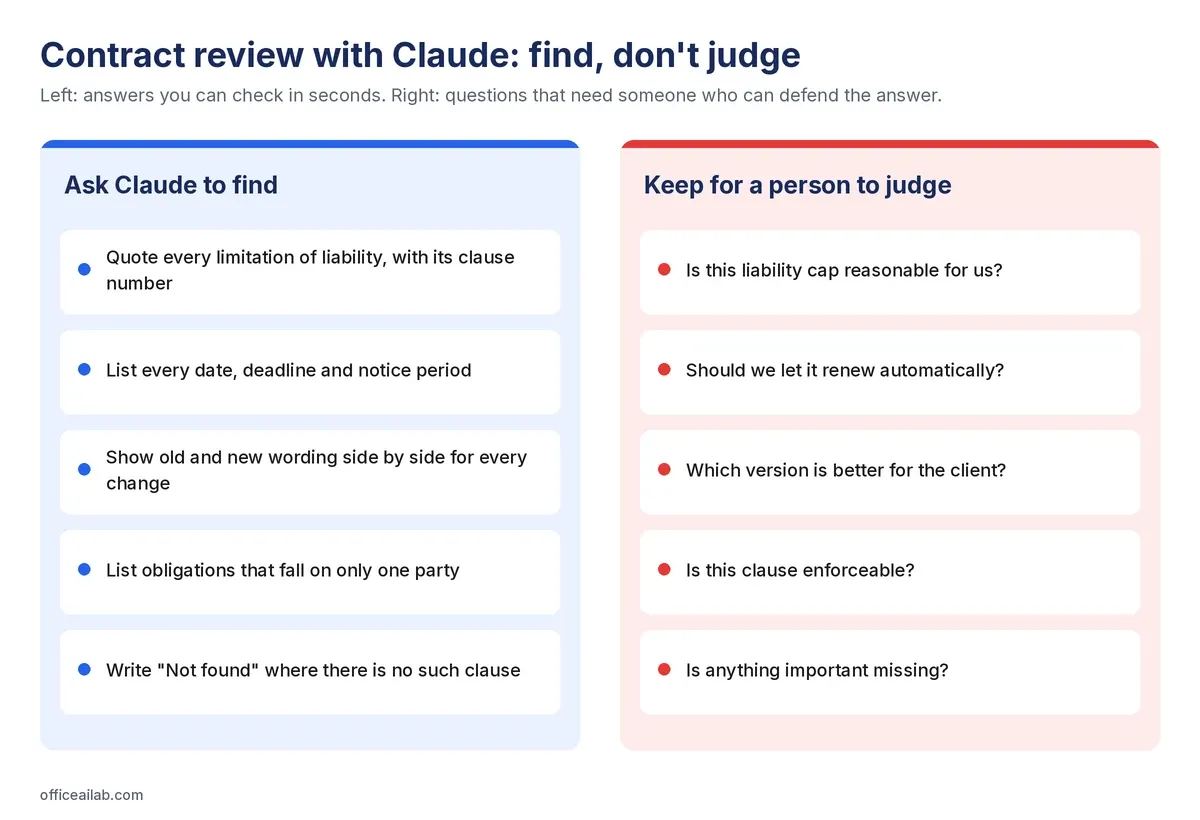
Two habits make the left-hand column work:
- Demand a quote and a clause number for every finding. A finding with a location takes seconds to verify. A finding without one takes as long as reading the contract.
- Always give it permission to say “Not found”. This is the single most important line in any extraction prompt. If the only acceptable answer is a term, you’ll sometimes get a plausible term that isn’t there. Making “Not found” an allowed answer removes the pressure to invent one.
Before you upload a contract
A contract is a client document, so the usual rules apply: use your firm’s business account, check the engagement letter or NDA allows it, and take out anything the question doesn’t need. Our pre-upload check for client files covers this in 90 seconds.
Two points specific to contracts:
- Work on a copy with tracked changes resolved, unless the changes are what you’re reviewing. Otherwise Claude may read deleted wording as live.
- Be careful with the counterparty’s file. Anthropic warns that files from outside sources can contain hidden instructions aimed at the AI reading them. A contract sent by the other side is exactly that kind of file. Use the chat, where Claude reads and answers, rather than an add-in that can edit your documents.
Step 1: Map the contract
Start with the structure, not a summary. A map shows you what’s in the document and where, so you decide what matters.
Produce a table of contents for this contract from its actual headings:
clause number, heading, and the page it starts on. List any schedules
or documents it refers to that are not attached. Do not summarize anything.
The second sentence is the useful one. Contracts often point to schedules, policies or web pages that aren’t in the file, and those are terms you’re agreeing to without having read them.
Step 2: Pull out the commercial terms
Extract into a table: initial term, renewal mechanism, notice period to
stop renewal, fees, payment terms, price increase rights, and minimum
purchase commitment. For each, quote the exact wording and give the
clause number. Write "Not found" where there is no such clause.
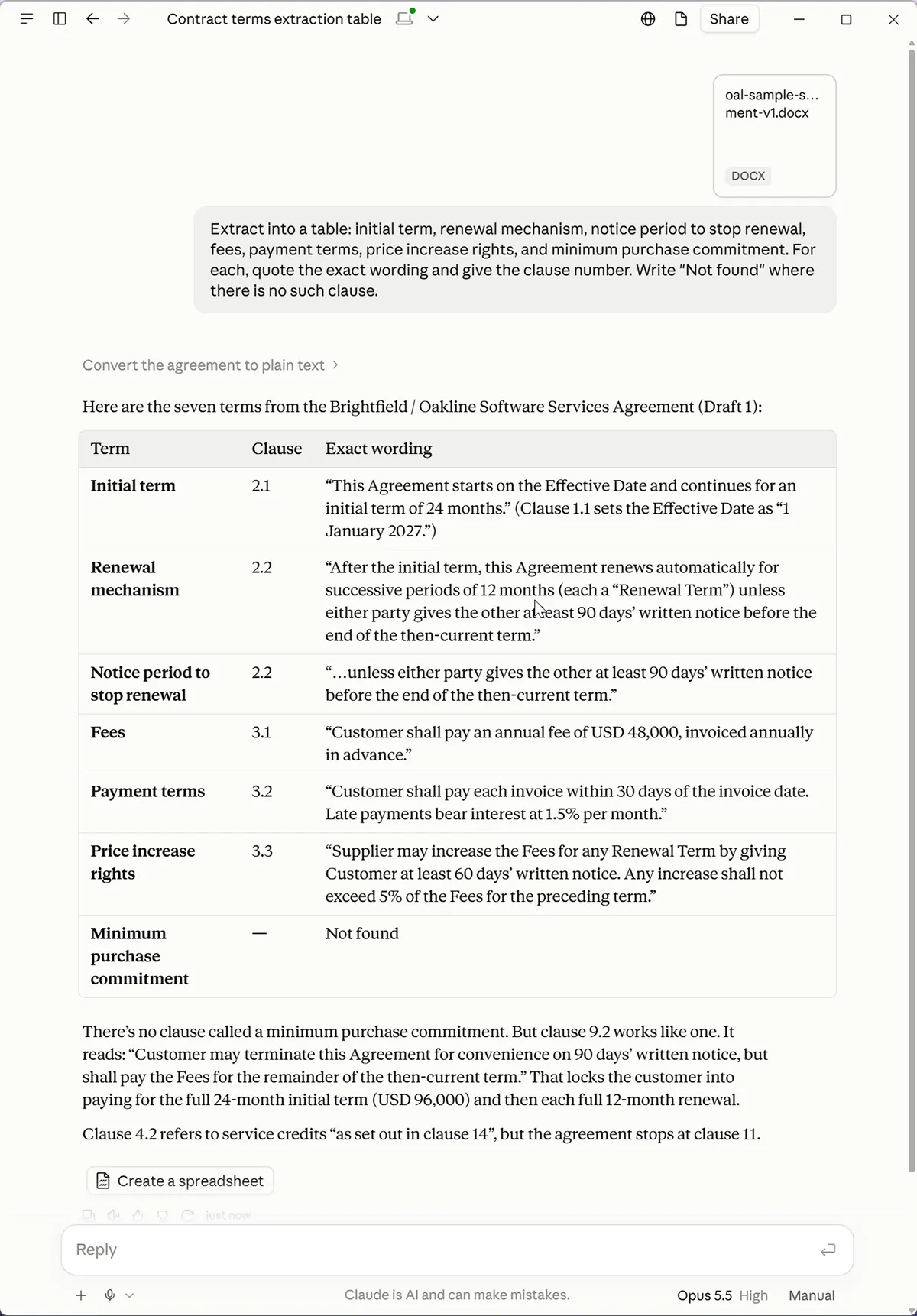
In our test, the minimum purchase commitment came back as “Not found”, which is correct: the sample contract doesn’t have one. That’s the behavior you want. Then check two or three of the quoted clauses against the document yourself.
Step 3: Find the dates and the one-sided terms
List every date, period and deadline in this contract with its clause
number and the sentence it appears in. Include relative periods such as
"within 30 days of".
List every obligation in this contract that falls on one party but not
the other. Quote each one and name the party bound by it.
Relative periods (“within 30 days after termination”) are the ones that get missed in a manual read, and they’re the ones that cause trouble a year later. Asymmetry is easy to list mechanically and hard to spot while reading 40 pages. In our sample contract, the supplier can end the agreement on 30 days’ notice for late payment, while a customer who ends it early still owes the fees for the rest of the term. Listing that is Claude’s job. Deciding whether the balance is acceptable is a conversation with the client.
Step 4: Compare two drafts
This is where Claude saves the most time. When the other side sends back a marked-up draft, or a clean draft with no tracked changes, ask for the differences with both wordings side by side:
Here are two versions of the same contract. List every substantive
difference in a table: clause number, what the old version says, what the
new version says. Quote both wordings exactly. Ignore formatting and
numbering changes. Do not say which version is better.
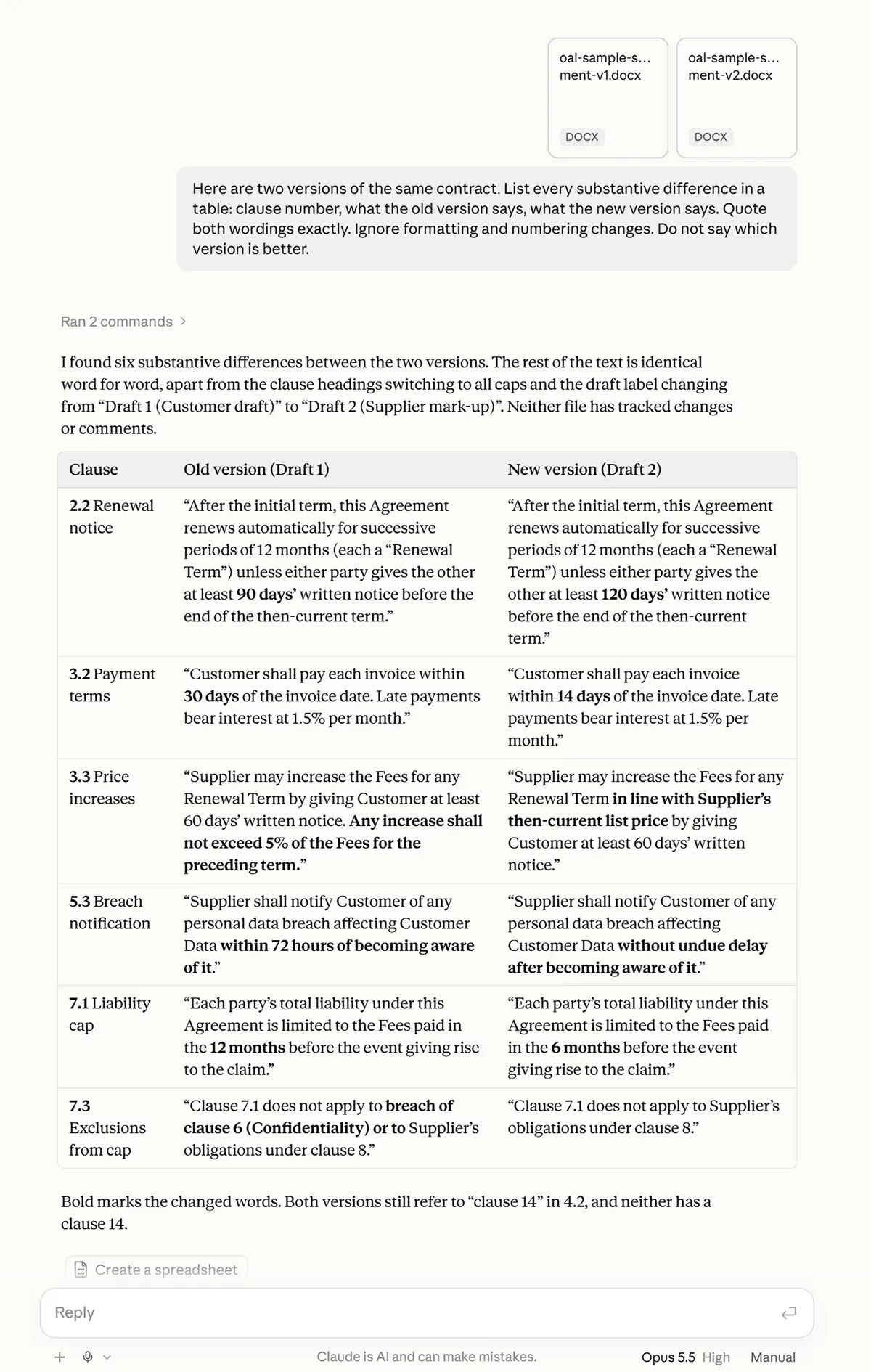
Ask for the old and new wording, not a description of the change. A description like “the liability cap was adjusted” loses the detail that matters: in our sample it went from 12 months of fees to 6. The last line of the prompt keeps the output something you can check, and keeps the decision where it belongs.
Check what it didn’t list
A comparison is only useful if it’s complete. Two quick checks:
- Ask: “How many differences did you find? Did you compare every clause, including schedules?”
- If you have Word, run Review → Compare on the two files as well. If Word finds a change Claude didn’t list, you know to look harder at that clause.
Step 5: Ask about what’s missing, carefully
“There’s no survival clause for the indemnity” is a much bigger claim than finding a clause, and less reliable. Ask for absence separately and make Claude show its search:
Does this contract say whether the indemnities in clause 8 survive
termination? Quote the clause that comes closest. If nothing addresses
it, say "Not found" and list the words you searched for.
Then search the document yourself for the same words. For anything that matters, absence needs two checks.
What stays with you
- What a clause means for this client. Claude can tell you the cap is six months of fees. Whether that’s acceptable depends on things outside the document.
- Anything that needs a lawyer. Enforceability, governing law questions and advice on what to sign are legal work. Claude doesn’t change that, and neither does a well-written prompt.
- The final read. Use Claude’s output as a checklist for your own review, not a replacement for it.
What about Claude for Word?
Anthropic also offers Claude for Word, an add-in that works inside the document. Anthropic’s help article lists it as a beta for Pro, Max, Team and Enterprise plans. It can answer questions with clickable section references and make edits as tracked changes you accept or reject, which suits redlining your own drafts.
Anthropic’s own guidance for it is worth repeating: use it with trusted documents, not files from outside sources, and don’t use it for final client deliverables or documents sent to a counterparty without human review. For a contract that arrived from the other side, I’d stick with the chat.
How we tested this
We wrote two drafts of a short software services agreement between two fictional companies. The second draft has six substantive changes, including a longer notice period, a lower liability cap and an uncapped price increase, plus one formatting-only change: every heading switched to capital letters. A good comparison lists all six and ignores the headings. We ran Steps 2 and 4 on a Claude Pro account. It’s worth building a similar test with a contract you already know well before you rely on Claude for a real one.
For the full set of prompts, from extracting defined terms to checking cross-references, download our 24 Claude prompts for contract and document review. For contracts over 100 pages, the method in our guide to analyzing long documents with Claude applies too.