
Most month-end closes don’t stall on the accounting. They stall on the writing, the chasing and the sorting: the variance commentary nobody wants to draft, the forty unmatched lines on the bank rec, the fifth email asking a department head for the same invoice. That’s exactly where ChatGPT earns its place in the close. It’s also why it causes trouble when people point it at the wrong part.
This guide splits the close into what ChatGPT does well, what it should never do, and a day-by-day workflow that puts it in the right places. There are three prompt patterns you can use this month, plus a short review checklist so nothing it writes reaches a reviewer unchecked.
The short answer
ChatGPT is good at the words and the shape of the close. It is bad at being the ledger.
Use it to draft, group, explain, reformat and chase. Don’t use it to decide, estimate, post or sign off. Every number in the finished close should trace back to your accounting system or your spreadsheet, never to a chat window. That rule covers almost every question you’ll have about where it fits.
Before you paste anything: check your account settings
Month-end data is client data, payroll data and unreleased results. Before any of it goes near ChatGPT, know which kind of account you’re using, because the defaults are different.
- ChatGPT Business, Enterprise and Edu workspaces: OpenAI states it does not use content from these workspaces to train its models.
- Free, Go, Plus and Pro accounts: the Improve the model for everyone setting is on by default. Turn it off under Settings → Data controls. Switching it off doesn’t delete chats you already have.
- Temporary chats aren’t used for training and don’t appear in your history, but OpenAI may keep them for up to 30 days for safety review.
Settings are only half of it. The other half is what you put in. Replace client names with codes, delete columns the question doesn’t need, and check hidden tabs before you upload a workbook. Our free resources include a one-page cheat sheet on exactly what never goes into a chat window.
What ChatGPT does well at month-end
These are the tasks where it saves real time and where a mistake is easy to catch before it matters.
| Close task | What ChatGPT does | Why it’s safe enough |
|---|---|---|
| Variance commentary | Turns your flux table and your notes on the causes into a first draft of management commentary | You supply every figure and every reason. It only writes the sentences. |
| Reconciliation exceptions | Groups unmatched items by likely cause: timing, duplicates, amount mismatches, missing counterparts | Grouping is reversible. You still clear every item yourself. |
| Close checklist | Turns last month’s close notes into a sequenced checklist with owners and dependencies | Structure, not numbers. You approve the order. |
| Chasing missing documents | Drafts polite, specific emails to department heads for receipts, approvals and accrual support | You read each email before it goes. |
| Reformatting exports | Normalizes dates, signs and number formats from bank and system exports | Formatting doesn’t change values, and you tie the totals back afterwards. |
| Explaining formulas | Explains an inherited workbook’s lookups and nested IFs in plain English, or drafts a new one | You test the formula in the sheet before relying on it. |
| Journal entry memos | Writes clear, consistent descriptions for entries you’ve already decided on | The entry and its amounts are yours. It only writes the memo line. |
The pattern across all seven: you bring the facts, it does the typing and the sorting. When a task fits that pattern it’s usually a good use. When it doesn’t, read the next section.
What it should never do in your close
Be the source of any number
ChatGPT can do arithmetic well when it writes and runs code on an uploaded file. It can do it badly when it simply types an answer. From the outside those look the same. Treat every total it gives you as a claim to check, and do the math that matters in the spreadsheet.
Explain a variance you haven’t explained to it
Ask “why did marketing spend rise 40%?” with nothing else, and you’ll get a confident, plausible reason: seasonal campaigns, a new vendor, timing. None of it comes from your books. It’s the most dangerous failure in this whole list, because the output reads exactly like a real answer. Always give it the cause and ask it to write, never ask it to find.
Make judgment calls
Accrual estimates, bad-debt reserves, capitalize-or-expense decisions and materiality thresholds all need someone who knows the business and can defend the number later. ChatGPT can lay out the considerations. It shouldn’t choose the answer.
Touch the system of record
Nothing it writes should be posted to the ledger without a person entering or approving it. It can draft the entry description. It shouldn’t be the reason an entry exists.
Handle data you’re not allowed to share
Individual payroll detail, unreleased results, anything under a live dispute or regulatory matter, and client data your engagement terms keep inside your systems all stay out, whatever the account type.
A month-end workflow with ChatGPT in the right places
Here’s a typical small-firm close with the ChatGPT steps marked. The parts that stay entirely human are listed too, because knowing where it doesn’t go is half the value.
| When | Step | ChatGPT’s role |
|---|---|---|
| Day −3 | Send the close calendar and document requests | Draft the request emails from your checklist |
| Day −1 | Chase what’s still missing | Draft the follow-ups, one per person, listing only their items |
| Day 1 | Export bank, card and subledger data | Reformat messy exports; you check row counts and totals |
| Day 1–2 | Bank and balance sheet reconciliations | Group the unmatched items by likely cause; you clear each one |
| Day 2 | Accruals and prepaids | None for the estimates. Draft the memo lines once the amounts are decided |
| Day 3 | Review the trial balance and flux analysis | None. This is the judgment step |
| Day 3–4 | Variance commentary and management pack | Draft the commentary from your figures and your stated causes |
| Day 4 | Review and sign-off | None. A person reviews every figure against the TB |
| Day 5 | Close notes for next month | Turn this month’s notes into next month’s checklist updates |
Three prompts to use this month
Each one is built around the same idea: give it the facts, give it a place to say “I don’t know”, and make the output easy to check.
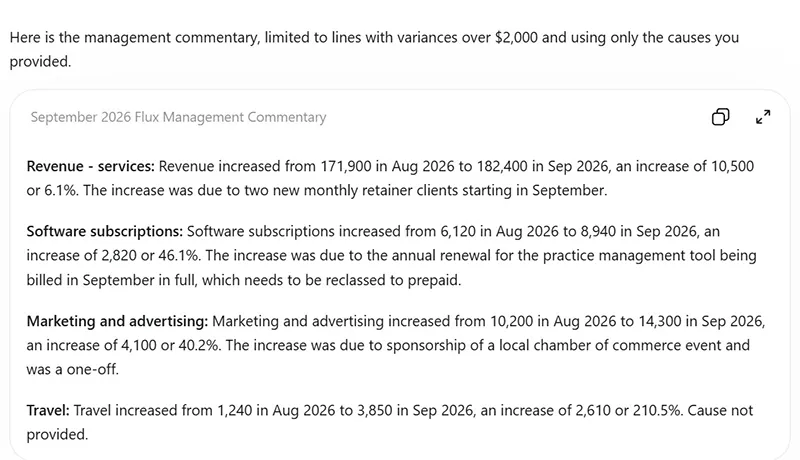
1. Variance commentary
Here is our flux table for [MONTH]: [PASTE TABLE].
Here are the causes for each variance over [THRESHOLD], in my words: [PASTE NOTES].

Write management commentary for each line over [THRESHOLD].
Use only the figures and causes above. Keep every figure exactly as written.
If I have not given a cause for a line, write "Cause not provided"
rather than suggesting one. Two sentences per line, plain English.
Why it works: the “cause not provided” instruction is the whole prompt. Without it, ChatGPT fills every gap with a reason that sounds right and isn’t sourced.
2. Reconciliation exceptions
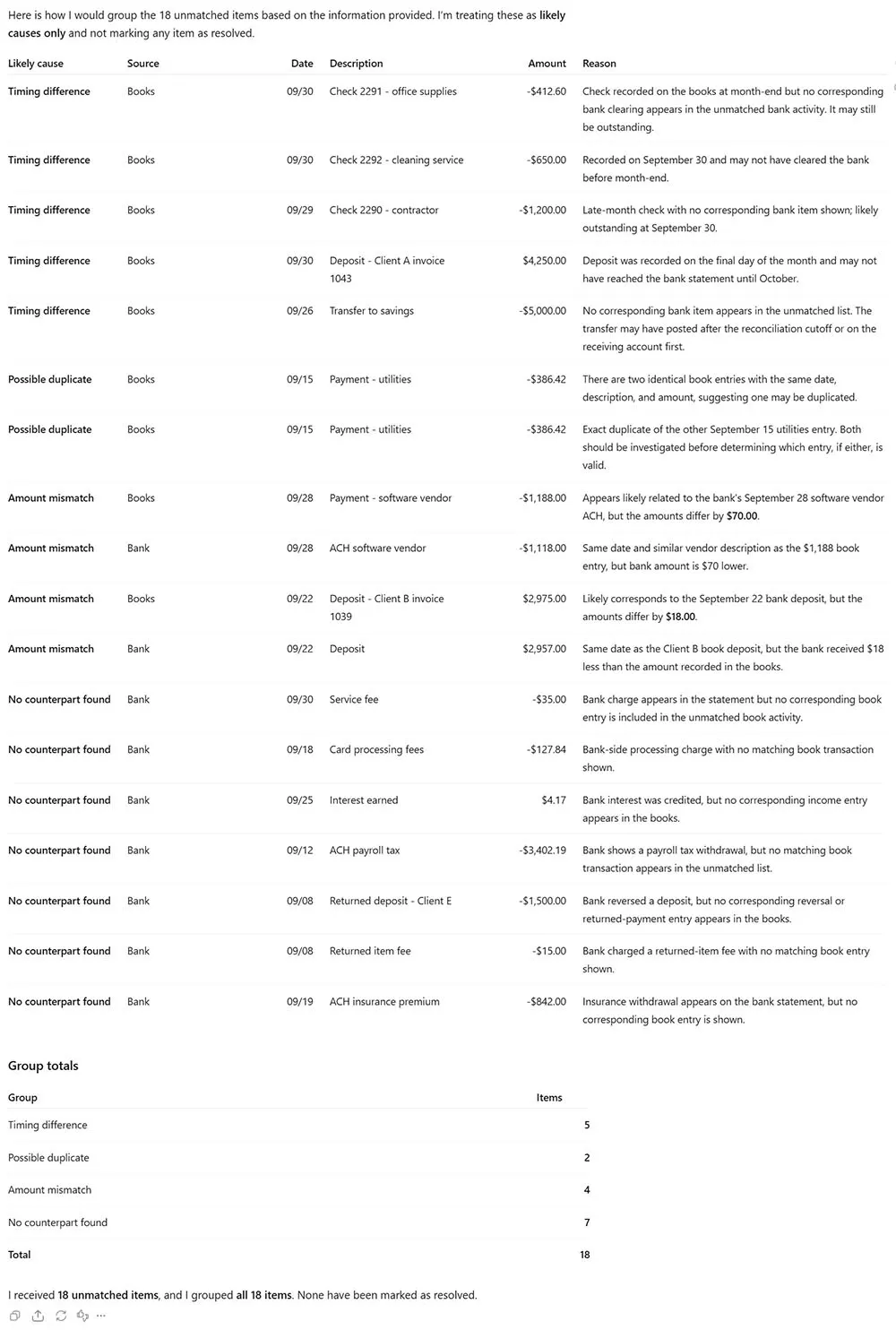
These [N] items are unmatched on the [ACCOUNT] reconciliation: [PASTE].

Group them by likely cause: timing difference, possible duplicate,
amount mismatch, or no counterpart found. For each item, give the reason
it went in that group. Do not mark anything as resolved.
Finish by stating how many items you received and how many you grouped.
Why it works: the count at the end catches the most common silent failure, where an item goes missing between your paste and its answer. If the two numbers differ, find the missing line before you do anything else. For more patterns like this one, see our free reconciliation prompt pack.
3. The missing-documents chase
Here is the list of outstanding close items, with owners: [PASTE].

Write one short email per owner, listing only their items, with the
deadline [DATE]. Friendly, specific, no more than five sentences.
Do not invent items, amounts or deadlines that are not in the list.
Why it works: one email per person, listing only their items, gets better replies than one long list sent to everyone. It’s also the kind of job nobody minds handing off.
These are three of thirty. The full set, arranged in the order the close actually happens, is in our free 30 ChatGPT Prompts for Month-End Close.
What ChatGPT for Excel changes
Since May 2026, OpenAI has offered ChatGPT for Excel, an add-in that works inside the workbook itself. You don’t have to paste data into a chat anymore. It can build and update models, explain formulas across tabs, run scenarios and trace errors, and it asks permission before it changes cells.
For the close, that removes the copy-and-paste step, which is where a lot of mistakes creep in. It doesn’t remove the review step. A few things worth knowing before you rely on it:
- Availability depends on your plan and region, and on Enterprise workspaces an admin has to switch it on.
- OpenAI’s own guidance says outputs can be incomplete or incorrect and need human review. Macros and VBA may not be fully supported.
- Spreadsheet chats are separate from your main ChatGPT history, so instructions you’ve set up elsewhere won’t carry over.
- Data rules still apply. A workbook is still client data, whether it’s pasted or opened in place.
Our rule doesn’t change: let it build the draft, then check that every total ties back before the file goes anywhere.
Before anything it wrote reaches a reviewer
Run this every time. It takes a couple of minutes and catches nearly everything that goes wrong.
- Count in, count out. The number of lines you gave it matches the number it gave back.
- Tie the totals. Every total in its output matches your spreadsheet or trial balance.
- Trace every figure. Each number in the commentary appears in the source you supplied.
- Check every cause. Each explanation is one you gave it, not one it produced.
- Read it as the reviewer would. If a sentence would prompt a question you can’t answer from your own records, cut it.
Where to start
Don’t try to use it across the whole close at once. Pick one job this month, usually variance commentary or the chase emails, and time it against last month. If it saves an hour and passes the checklist, add a second job next month. That’s how it becomes part of the process rather than a novelty someone tried once.