

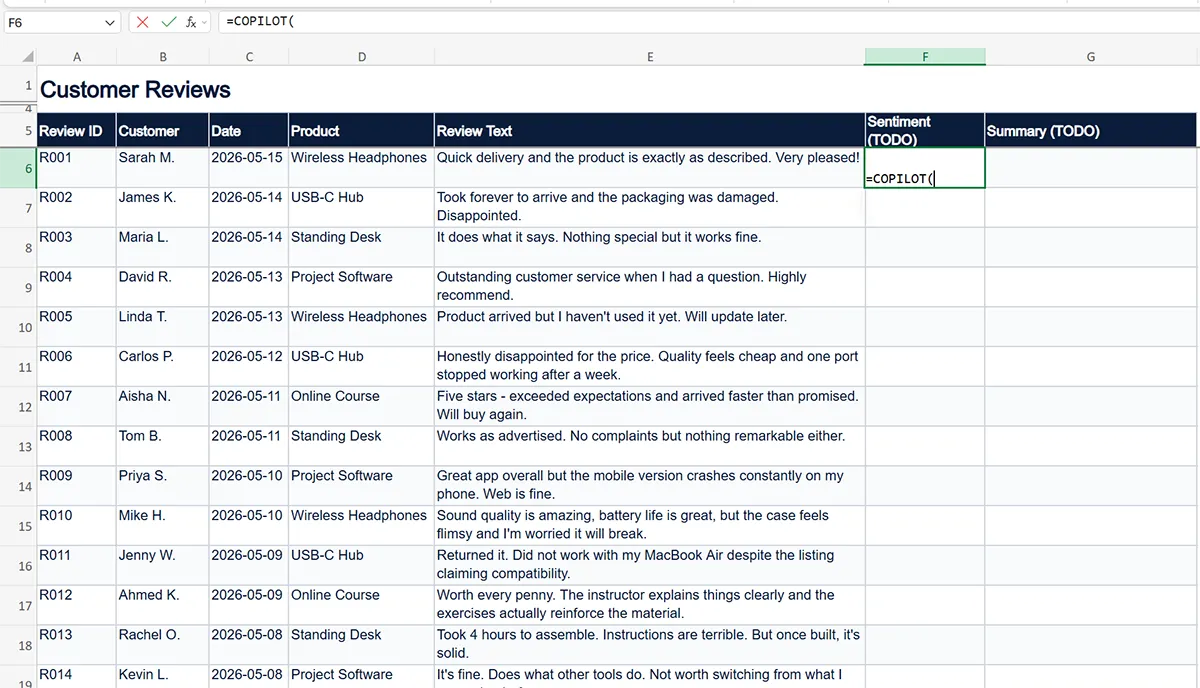
You typed =COPILOT( into a cell and Excel either auto-completes to something else, throws #NAME?, or just ignores you completely. Frustrating — especially after reading articles that make the function sound like it’s already available to everyone.
Here’s the truth: as of mid-2026, =COPILOT() is still rolling out gradually. Microsoft is doing what they always do — limited release first, then broader availability over months. Whether you see it depends on six specific things, and most “it’s not showing” reports come down to the first three.
This guide walks through every reason in order of how likely it is to be your problem. Test each one before escalating to your IT admin.
Quick Diagnostic: Answer These 3 Questions First
Before troubleshooting, get three pieces of information. They’ll narrow down which fix you need:
- What Excel version are you running? Go to File → Account → About Excel. Note the channel (Current, Monthly Enterprise, Semi-Annual, Beta, or Insider) and the build number.
- Do you have a Microsoft 365 Copilot license? Not Microsoft 365 Business Standard — the separate Copilot add-on that costs $30/user/month. If you’re not sure, ask your admin or check Microsoft 365 Admin Center → Billing → Licenses.
- Are you the tenant admin? Some fixes require admin access. If you’re not, identify who is before you start.
Got those? Now work through the six reasons in order.
Reason 1: You’re On the Wrong Release Channel
Probability you’re hitting this: roughly 60%
=COPILOT() is currently available only on the Microsoft 365 Beta Channel (formerly Insider Channel). If you’re on the Current Channel, Monthly Enterprise Channel, or Semi-Annual Channel, the function simply doesn’t exist in your build of Excel yet. Microsoft will roll it out to broader channels over time, but right now it’s Beta-only.
How to check your channel
Open Excel → File → Account → About Excel. Look at the channel name at the top of the dialog.
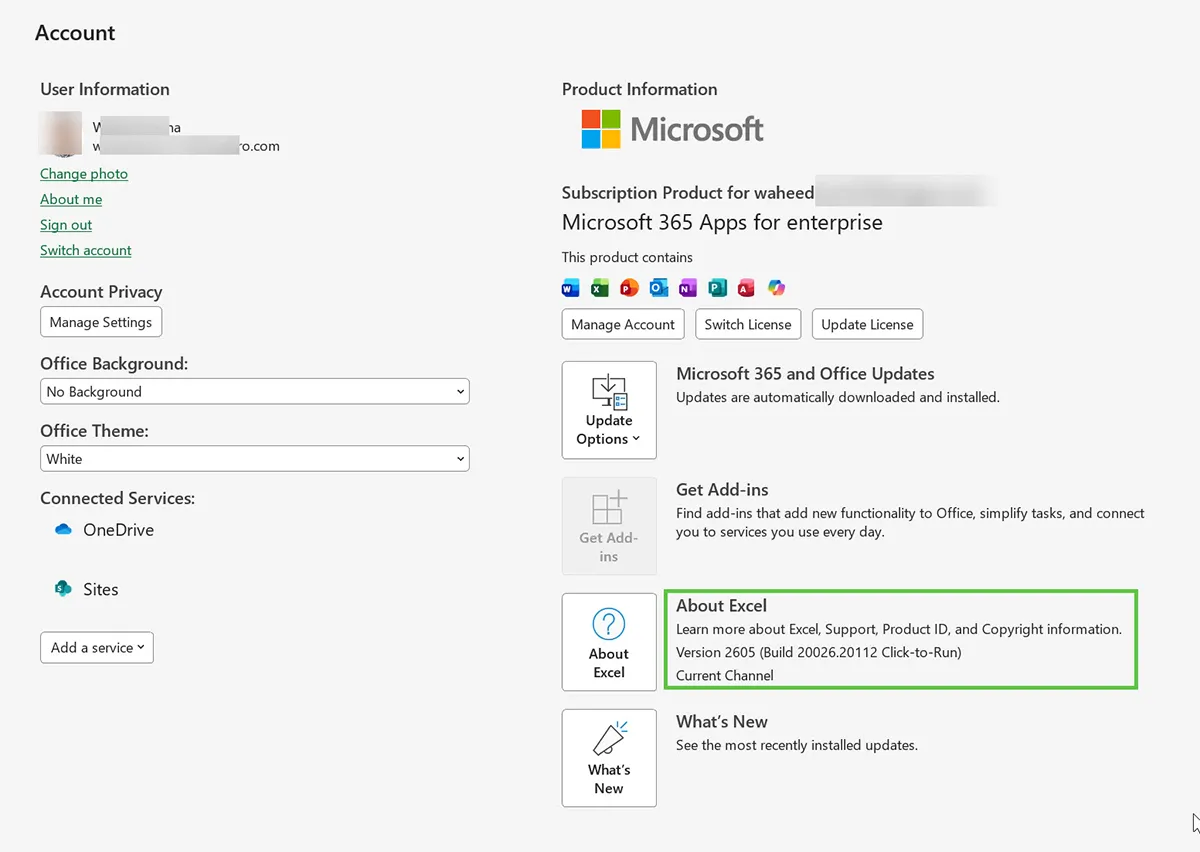
If it says:
- Beta Channel or Insider — You’re on the right channel. Skip to Reason 2.
- Current Channel — You need to switch. See below.
- Monthly Enterprise Channel or Semi-Annual Channel — You won’t get =COPILOT() until Microsoft promotes it to your channel. Switching channels requires admin action on managed devices.
How to switch to Beta Channel
For consumer or personal Microsoft 365 accounts, you can join the Office Insider program manually:
- Open File → Account → Office Insider → Join Office Insider
- Choose Beta Channel
- Restart Excel
- Wait for the update to download (can take 10 to 20 minutes)
- Reopen Excel and check About Excel again to confirm the channel changed
For business or enterprise accounts, your tenant admin must change the channel via the Microsoft 365 Admin Center. Individual users cannot do this themselves on a managed device.
A warning: Beta Channel includes pre-release features that can be unstable. Don’t switch a critical production machine to Beta unless you understand the risk. For testing, use a secondary device or virtual machine.
Reason 2: Your Tenant Has No Copilot Licenses
Probability you’re hitting this: roughly 15%
Microsoft 365 Copilot is a separate paid add-on, not included in any standard Microsoft 365 plan. If nobody at your organization has purchased Copilot licenses, =COPILOT() won’t work for anyone — regardless of channel.
How to check
Sign into Microsoft 365 Admin Center at admin.microsoft.com → Billing → Your products.
Look for a product called Microsoft 365 Copilot in your subscriptions list. If it’s not there, your tenant hasn’t purchased Copilot licenses.
How to fix
Someone with billing admin rights needs to purchase Copilot licenses. Pricing as of mid-2026:
- Microsoft 365 Copilot: $30/user/month, annual commitment
- SMB option: Smaller tenants may use the “Microsoft 365 Copilot for Small and Medium Business” SKU
If you’re an SMB user without admin access, escalate to whoever manages billing.
Reason 3: A Copilot License Isn’t Assigned to YOUR User
Probability you’re hitting this: roughly 10%
This is a sneaky one. Your tenant might have Copilot licenses, but they might be assigned to other users — not you. Excel won’t show the function for unlicensed users even if other people in the same tenant can use it.
How to check
Two ways:
Self-check: Open myaccount.microsoft.com → look for Subscriptions or My subscriptions in the sidebar. Look for Microsoft 365 Copilot in the list. Note: many work accounts have this section hidden by tenant policy. If you can’t find it, skip to the admin check below.
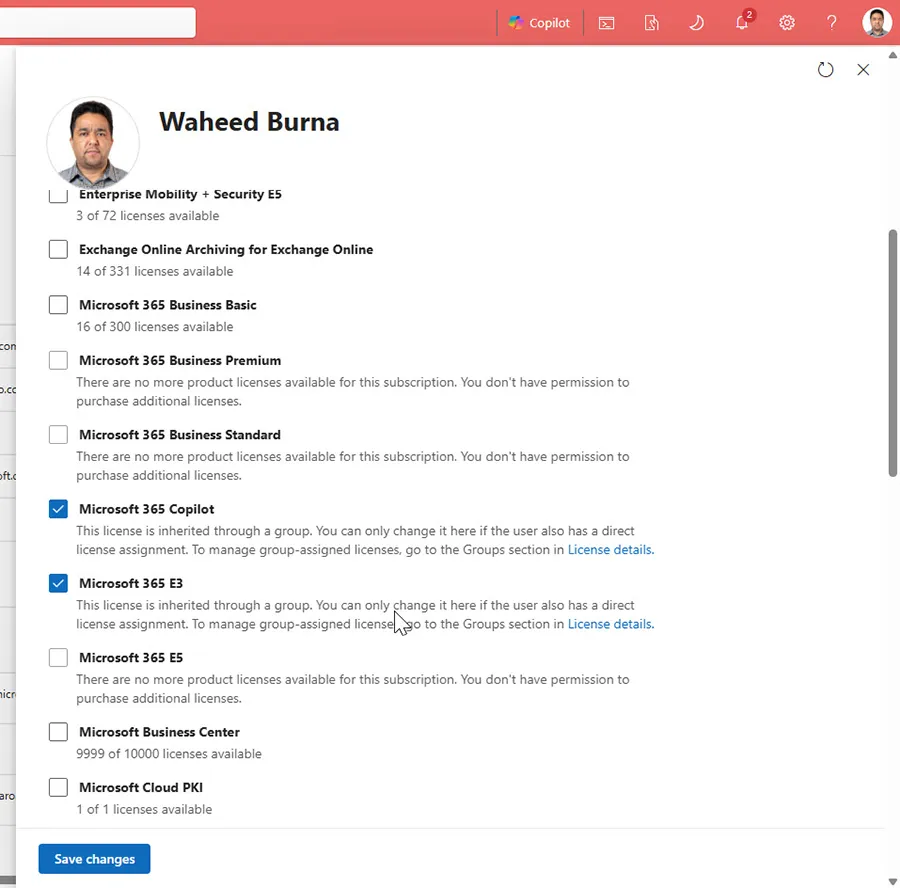
Admin check: In Admin Center → Users → Active users → find your account → Licenses and apps tab. Confirm Microsoft 365 Copilot is checked.
How to fix
Your admin needs to assign you a Copilot license. In Admin Center → Users → Active users → select your user → Manage product licenses → check Microsoft 365 Copilot → Save.
Allow 15 to 30 minutes after license assignment for the change to propagate. Close and reopen Excel.
Reason 4: Tenant Admin Has Disabled Copilot in Excel
Probability you’re hitting this: roughly 8%
Microsoft 365 admins can disable Copilot features at the organization level even if licenses are assigned. This is increasingly common at companies with strict data governance — Legal or InfoSec asks IT to block Copilot until contracts and policies are sorted.
How to check
You need admin access. In Admin Center:
- Settings → Org settings → Services — look for Microsoft 365 Copilot entries
- Or the Microsoft 365 Apps Admin Center — policies that affect Copilot in Excel specifically
If you’re not the admin, ask the question this way: “Is Copilot in Excel enabled for our tenant? Can you confirm there’s no policy disabling the =COPILOT() function specifically?”
How to fix
Admin removes the policy or grants exceptions. This is a conversation, not a checkbox — there’s usually a reason the policy exists (compliance, data residency, vendor risk). Be prepared to explain why you need it for legitimate business workflows.
Reason 5: Workbook Has a Sensitivity Label That Blocks AI Processing
Probability you’re hitting this: roughly 5%
Microsoft Purview sensitivity labels can restrict Copilot from processing the contents of a workbook. If your workbook is classified as Confidential or has any label with AI-processing restrictions, =COPILOT() returns #BLOCKED! or fails to execute.
How to check
Look at the top of the Excel ribbon for the sensitivity label name (for example, “Sensitivity: Confidential”). If you see one, that’s the suspect. You can also check via File → Info → Sensitivity to see the current label.
How to fix
Two options:
- Change the label if you have permissions: File → Info → Sensitivity → choose a less restrictive label like “General” or “Internal”
- Test with a new blank workbook without any label applied. If =COPILOT() works there but not in the labeled workbook, you’ve confirmed the cause.
If your data legitimately needs to stay labeled Confidential, you cannot use =COPILOT() on that workbook — that’s the label doing what it’s supposed to do.
Reason 6: Regional or Rollout Availability
Probability you’re hitting this: roughly 2%
Microsoft rolls out features in waves. Some Microsoft 365 regions and tenants get features weeks or months after others. =COPILOT() may not yet be available in your specific tenant even if everything else above checks out.
How to check
There’s no clean self-service check for this. The signal is: you’ve ruled out all five reasons above, you’re on Beta Channel with an active Copilot license, AND nothing works.
How to fix
Wait. Or open a Microsoft support ticket asking about rollout status for your tenant. Don’t expect a specific date — Microsoft is rarely transparent about per-tenant rollout windows.
The Escalation Checklist
If you’re stuck and need to bring in IT or your admin, send them this message. It saves both of you about 30 minutes of back-and-forth:
Hi [admin],

I need help getting the =COPILOT() function working in Excel.
Here's what I've verified myself:

[ ] Excel channel: __________ (need Beta or Insider)
[ ] Tenant has Microsoft 365 Copilot licenses purchased: Yes / No
[ ] License assigned to my user: Yes / No
[ ] Build number: __________
[ ] Workbook sensitivity label: __________

What I cannot check without admin access:
- Tenant-level Copilot policies in Org Settings
- Whether the function is blocked at the admin policy layer
- Regional rollout status for our tenant

Can you confirm these and let me know what's blocking it?
When It Finally Works
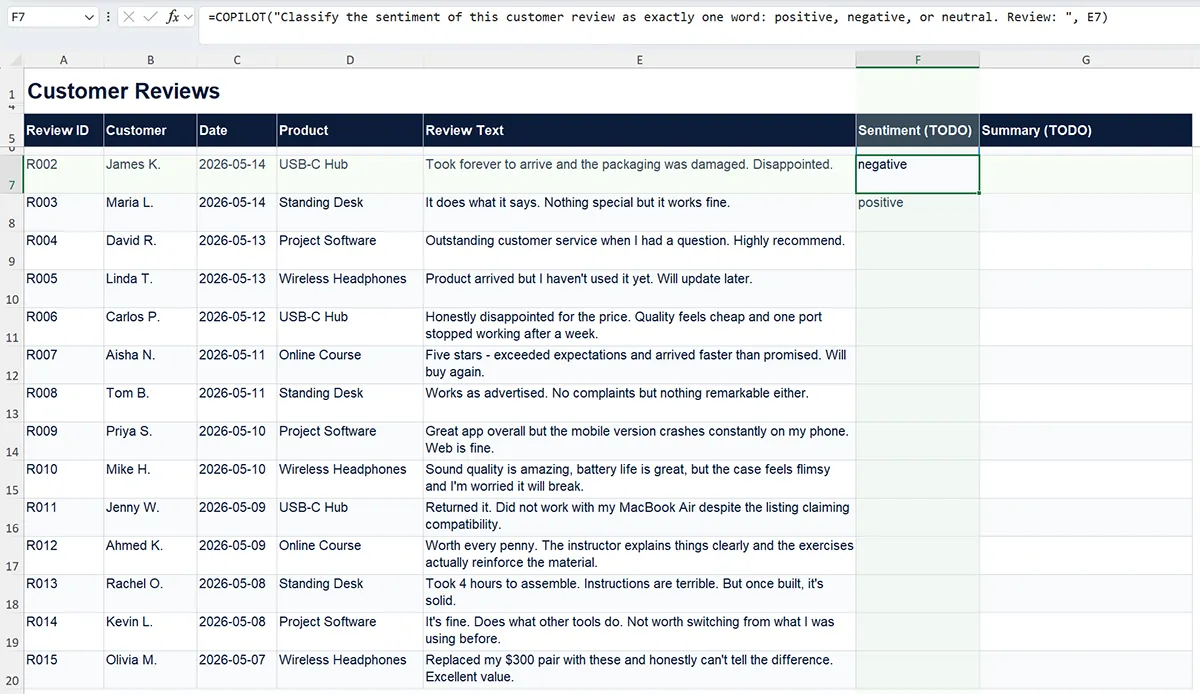
Once =COPILOT() is showing in Excel, you have a different set of things to learn — what it’s actually good at, what to avoid, and how to handle the errors that come up during use (different from the “not showing” errors above).
For that, see our guide on the =COPILOT() function, which covers what we found after testing the function across 200+ cells in real business workflows.