

Microsoft is bringing AI directly into Excel formulas with the new =COPILOT() function.
At first, this sounds like a huge deal — and in some ways, it is. You can write a prompt inside a cell, point it at your data, and let Excel return an AI-generated answer right in the spreadsheet.
For example:
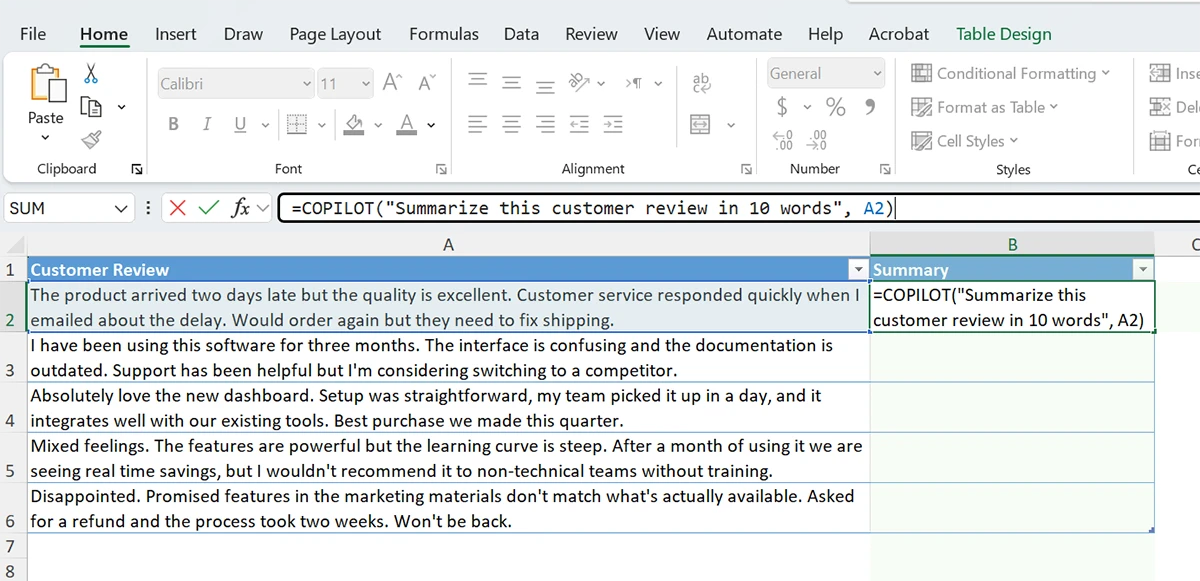
=COPILOT("Summarize this customer review in 10 words", A2)If cell A2 has a long customer review, Excel can return a short summary. Drag the formula down, and now you can summarize a full column of reviews without manually reading every one.
That is useful.
But this is also where people can get into trouble.
=COPILOT() is not a replacement for Excel formulas like SUM, XLOOKUP, IF, SUMIFS, or PivotTables. It is not something I’d trust for accounting calculations, financial reporting, audit work, payroll, tax data, or anything where the answer must be exact.
The way to think about it is simple:
- Use
=COPILOT()for messy text work, classification, first drafts, and quick summaries. - Do not use it for math, compliance, confidential data, or final business decisions without review.
In this post, I’ll cover what the function does, where it helps, where it fails, what license you need, and how I’d actually use it in a small business setting.
Before You Use It: Important Access Requirements
Before you spend time looking for the function in Excel, understand this first: not every Excel user has access to =COPILOT() yet.
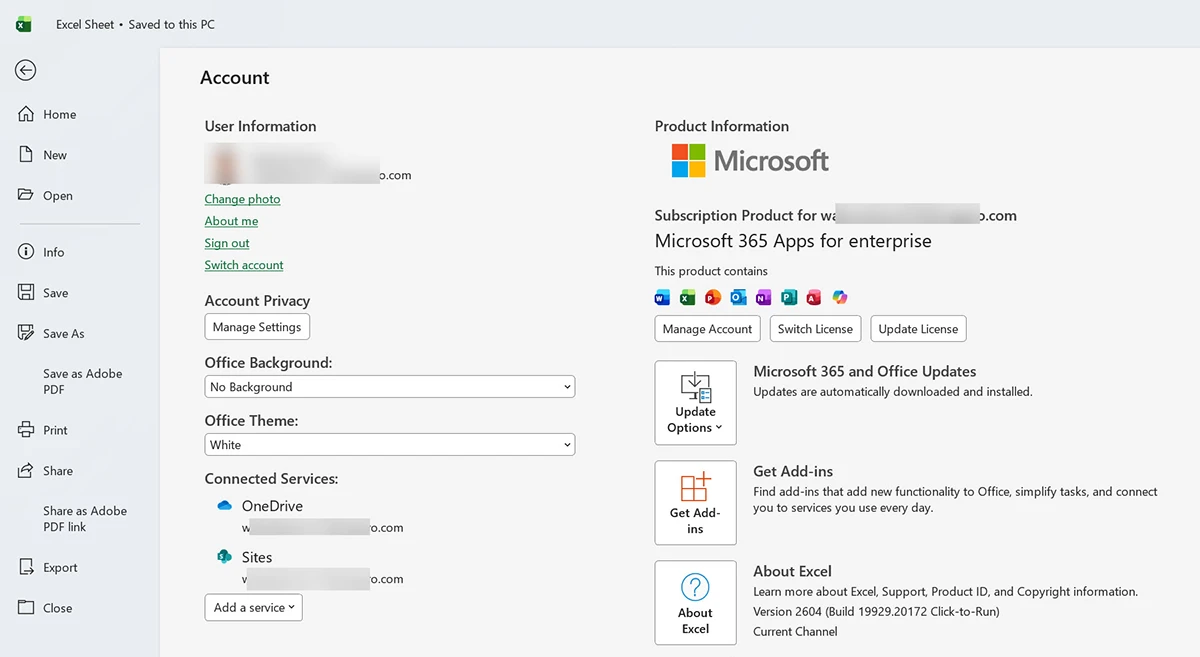
As of May 2026, the function is rolling out through the Microsoft 365 Insider and Frontier programs. It’s not yet generally available to all Microsoft 365 users. To use it, you need:
- A qualifying Microsoft 365 plan with the right Copilot license:
- Work or school users: A Microsoft 365 Copilot add-on license attached to your business plan
- Individual users: A Microsoft 365 Premium subscription (not Copilot Pro — that’s different)
- Excel on the right release channel — Microsoft 365 Insider or Frontier
- Your workbook saved to OneDrive or SharePoint with AutoSave turned on
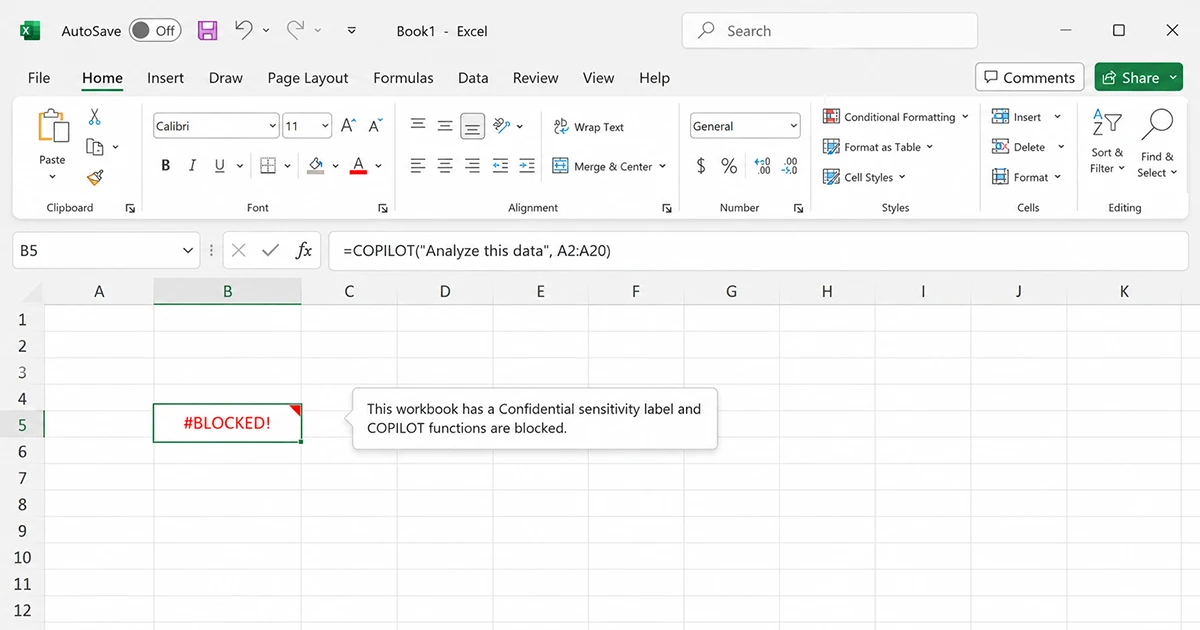
- No Confidential or Highly Confidential sensitivity label — the function is blocked on workbooks with these labels
If your workbook is labeled Confidential or Highly Confidential, the function will not run. This matters a lot for accounting firms, healthcare teams, legal teams, HR departments, and anyone working with client-sensitive data.
So if you don’t see the function yet, it’s probably not your Excel skills. It’s licensing, release channel, tenant configuration, or sensitivity labels.
What =COPILOT() Actually Does
The function takes a prompt (what you want the AI to do) and an optional reference to cells or a range. The AI reads your prompt and the data, generates a response, and returns it to the cell as a value.
It’s different from sidebar Copilot. Sidebar Copilot lives in a chat panel and works across the whole worksheet. =COPILOT() works at the cell level — it’s a formula like =SUM or =VLOOKUP, except instead of summing numbers, it runs natural language through an AI model.
This changes how you use AI in a spreadsheet. Instead of opening the Copilot panel, asking a question, and copy-pasting the answer back, you write the prompt once as a formula and Excel handles it for every row.
For messy text work, that’s where the function starts to make sense.
Five Things =COPILOT() Does Well
1. Sentiment analysis on customer feedback or survey responses
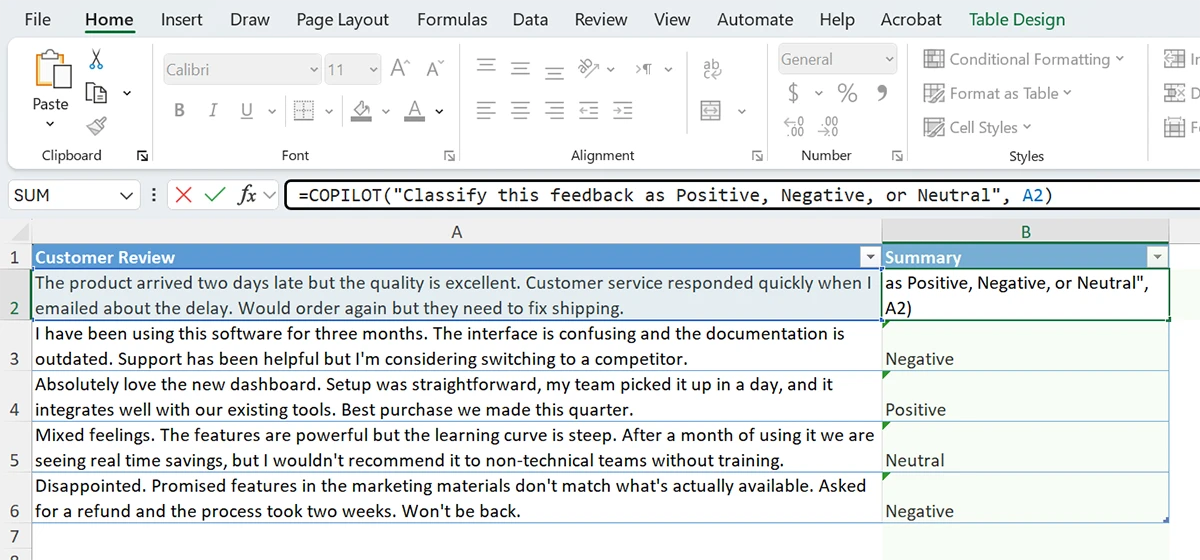
=COPILOT("Classify this feedback as Positive, Negative, or Neutral", A2)Drag down a column of 500 survey responses. You get 500 sentiment tags in a couple of minutes. Accuracy is decent for clearly worded responses — worse for sarcasm or industry jargon. Spot-check the edge cases.
2. Quick classification or categorization
=COPILOT("Categorize this expense as Travel, Software, Marketing, or Office", B2)For uncoded expense lists, vague accounting line items, or messy CRM tags, this beats writing a long nested IF formula. Good for first-pass categorization — verify the unusual cases manually.
3. Short text generation (subject lines, headlines, summaries)
=COPILOT("Write a 60-character email subject line for this campaign", A2)If you have a column of campaign descriptions and need draft subject lines, the function beats writing them by hand. You’ll still want to edit the output, but the blank-page problem is solved.
4. Extracting structured data from messy text
=COPILOT("Extract the company name from this contact info", A2)For pasted email signatures, scraped contact data, or inconsistently formatted records, the function handles this better than regex for most non-technical users.
5. Multilingual translation in-line
=COPILOT("Translate this to Spanish", A2)Useful for quick, casual translation work. Not suitable for legal or regulatory translation, but fine for internal communication.
Five Things =COPILOT() Gets Wrong
This is the part most demos will skip. They show you the wins and leave out the failures. The failures matter more.
1. It can produce wrong numbers — confidently
The function is not deterministic. Microsoft is explicit that =COPILOT() output should be reviewed, edited, and verified before being used. If you ask the function to do math, it might give you the right answer, a number close to the right answer, or a completely fabricated number. All three look the same in the cell.
Use =A2-B2 for actual math. Always.
2. It has a hard usage limit
Microsoft caps the function at 100 COPILOT calculations every 10 minutes per user. If you try to recalculate a sheet with 500 =COPILOT() formulas at once, you’ll hit the limit and the remaining cells will fail.
Plan for this. Process data in batches if you’re working with large lists.
3. Prompts that are too large will fail
If your prompt plus the input data exceeds the function’s prompt size limit, Excel returns a #VALUE! error with a “Prompt Too Large” indication. There’s no automatic chunking — you need to shorten your prompt or split your input.
For most SMB use cases (one cell at a time, short prompts), this isn’t an issue. For wide ranges or long input cells, expect to hit this.
4. Results aren’t reproducible
Run the same =COPILOT() formula on the same data twice and you’ll get slightly different answers each time. The function uses an LLM and LLMs have inherent randomness.
For sentiment analysis this is acceptable. For anything that needs reproducibility — financial reporting, audit work, compliance documentation — this disqualifies the function entirely. If your boss asks “why did this cell show Positive yesterday and Neutral today,” your only honest answer is “it’s the model.”
5. It doesn’t always tell you when it’s wrong
The function rarely refuses a task. Even if it doesn’t have enough information to answer correctly, it usually generates something plausible-looking instead of saying “I don’t know.” There’s no built-in uncertainty score in the output. Every cell looks confident.
This is why human review is non-negotiable for anything that matters.
When to Use =COPILOT() vs Traditional Excel
| Task | Use =COPILOT()? | Better Option |
|---|---|---|
| Summarize customer reviews | ✅ Yes | =COPILOT() |
| Classify feedback sentiment | ✅ Yes, with review | =COPILOT() + manual validation |
| Extract company names from messy text | ✅ Yes | =COPILOT() |
| Translate internal notes | ✅ Yes, low-stakes only | =COPILOT() |
| Calculate revenue variance | ❌ No | =A2-B2, SUMIFS, PivotTable |
| Prepare audit report numbers | ❌ No | Verified Excel formulas only |
| Apply tax rates or compliance calcs | ❌ No | Traditional formulas + verification |
| Generate financial reports | ❌ No | Excel formulas, PivotTables |
| Work with confidential client data | ⚠️ Check first | Verify with IT/security policy |
| Bulk-process 1000+ rows in one go | ❌ No | Hit the 100/10-min limit — batch it |
The pattern is simple: text-heavy and fuzzy → =COPILOT() is fine. Numeric, audited, or compliance-bound → traditional formulas.
What It Costs
You need a paid Microsoft 365 plan with a Copilot license that includes the function. As of May 2026:
- Work or school users: Need a Microsoft 365 Copilot add-on license attached to a qualifying business plan (M365 Business Standard, Business Premium, E3, or E5). Pricing is $30 per user per month, billed annually. SMB promo pricing continues through June 30, 2026.
- Individual users: Need Microsoft 365 Premium — this is the paid consumer plan that includes Copilot. Note: Copilot Pro alone is not enough for the
=COPILOT()function in work scenarios.
The free chat at copilot.microsoft.com does not include the =COPILOT() function. You need a paid tier with the Excel integration.
For SMBs deciding whether it’s worth it: think about who actually does Excel-heavy work on your team. You don’t need Copilot for everyone. Assign it to the 1-3 people who’d actually use it. For a 5-person team where 2 people live in Excel, that’s $60 per month total. The math works if those people spend more than 3-4 hours a month on the tasks =COPILOT() handles well — and most accounting and finance roles do.
When NOT to Use =COPILOT()
Hard rules:
Never for math. Use =SUM, =IF, =XLOOKUP, =SUMIFS, or whatever traditional formula does the job. They’re deterministic and verifiable.
Never for confidential or regulated data without IT sign-off. If you work in accounting, healthcare, legal, or any regulated industry, talk to your IT lead before pointing =COPILOT() at client data. Microsoft has compliance documentation but the answer depends on your tenant’s configuration and sensitivity labels.
Never for financial reporting or audit work. The non-deterministic output disqualifies it. If you’d be uncomfortable explaining “the AI picked that value” to an auditor or a regulator, don’t use the function for that workbook.
Never for high-stakes decisions without review. Sending client communications, billing decisions, hiring decisions based on AI screening — review the output before acting on it.
How to Actually Use It Well
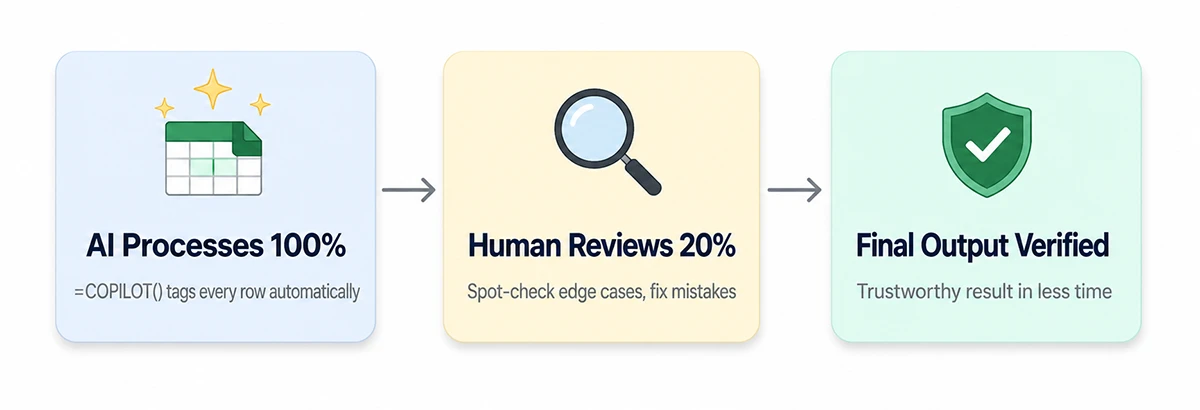
The pattern that works in practice: =COPILOT() for the first 80% of a task, human review for the last 20%.
For sentiment analysis on 500 survey responses, run =COPILOT() down the column to tag everything. Then sort by tag and read 20-30 from each bucket to spot-check accuracy and find the edge cases. You’ve cut a 3-hour task to 30 minutes — and you’ve actually read the responses with the worst sentiment, which was the point anyway.
For categorizing 1,000 expense lines, let the function propose categories. Then filter to anything tagged “Other” or “Uncategorized” and code those manually. The AI handled the obvious cases — you focused on the 5-10% that needed judgment.
The mental model: =COPILOT() is a fast assistant that’s occasionally wrong. You’re the editor. The function does the typing; you do the thinking.
The Verdict
=COPILOT() is one of the most interesting Excel features Microsoft has shipped in years, and it’s worth learning if you spend significant time in spreadsheets.
It is not a replacement for traditional formulas. It is not a calculator. It is not safe for high-stakes work without verification.
Used correctly — for text-heavy, fuzzy, exploratory work where being approximately right is good enough — it saves hours of manual work per week.
Used incorrectly — for math, audit work, confidential data, or anything that needs to be exactly right — it produces confidently wrong outputs that are worse than no output at all.
What to Do Next
If you have Copilot for Microsoft 365 already and you’re on the Insider or Frontier channel, open a new workbook this week and try =COPILOT() on a small batch of data. Pick a real task you’d otherwise do manually — sentiment, classification, summarization, translation. See where it helps and where it fails on your actual data, not on a demo.
If you don’t have Copilot yet and your team works heavily in Excel, the SMB promo pricing through June 30, 2026 makes this a good window to pilot it. Start with one or two seats for the people who’d benefit most. Measure the time saved on a specific recurring task over a month. Decide based on real data, not the demos.
If you’re still figuring out where AI fits in your workflow, start there — not here. =COPILOT() is a power-user feature for people who already know what they want Excel to do for them. The function makes you faster at things you already know how to do. It doesn’t tell you what to do.
Last tested: May 2026, with Microsoft 365 Copilot (Insider channel, May build), Excel Beta Channel, on Windows 11 and macOS Sequoia.